Google customer reviews can be submitted for your Partnershop.
To activate Google reviews in your Partnershop, you need a “Google Merchand ID”.
The prerequisite for this is that you have a Google Merchant Center account.
The Google Merchant Center is a tool with which you can make various Google services available (e.g. customer reviews).
You will also find your Merchant ID there. Your Merchant ID is a unique number that identifies your Merchant Center account.
Follow these steps:
Go to the Google Merchant Center website (https://merchants.google.com/).
Sign in with your Google account or create a new account if you don’t already have one.
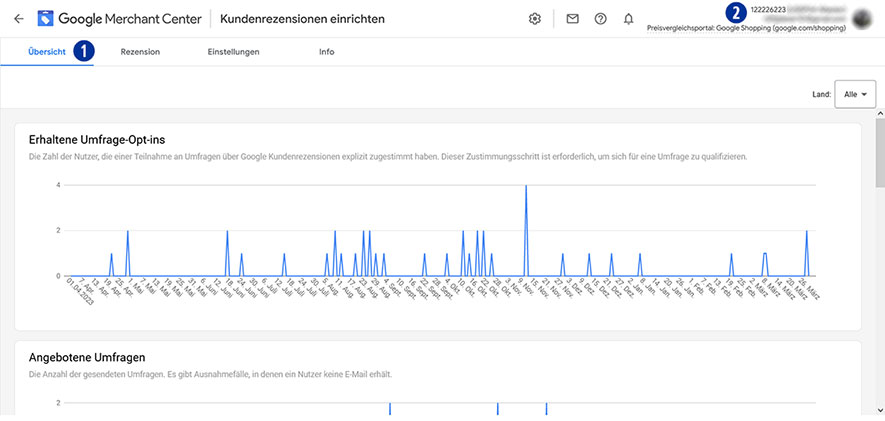
You are on the Overview page of Google Merchant Center. [1]
Copy your dealer ID to the clipboard. [2]
Go to your Partnershop backend – marketing / online marketing [3] to the “Google Reviews” module. [4]
Paste your “Google Merchant ID” [2] from the clipboard into the input field [5].
Activate the “Show Widget” checkbox [6] to display the “Google Reviews” tile on the homepage of your Partnershop.
Confirm your entry by clicking on the “Go!” button. [7]

Notice
Confirm that you are the owner of your website URL under “Company Information” in Google Merchant Center and then claim the URL for this Merchant Center account.
You can find detailed information about this under the link https://support.google.com/merchants/answer/188493?hl=de&ref_topic=3163841.
After completing an order, the customer will be shown a window on the order completion page to take part in the customer survey.
If the customer confirms the message, an email will be sent within X days, depending on the shipping method selected.
The customer then has the opportunity to make the assessment.
The customer reviews submitted are displayed via the Google review widget on the homepage of your partner shop within the slide above. [Fig. follows]
To display reviews, a minimum number of 150 customer reviews is required.