How to find a print24 order in my backend?

If you only have the corresponding print24 order number for a Partnershop order, you can use your Partnershop backend to find out the corresponding Partnershop order.

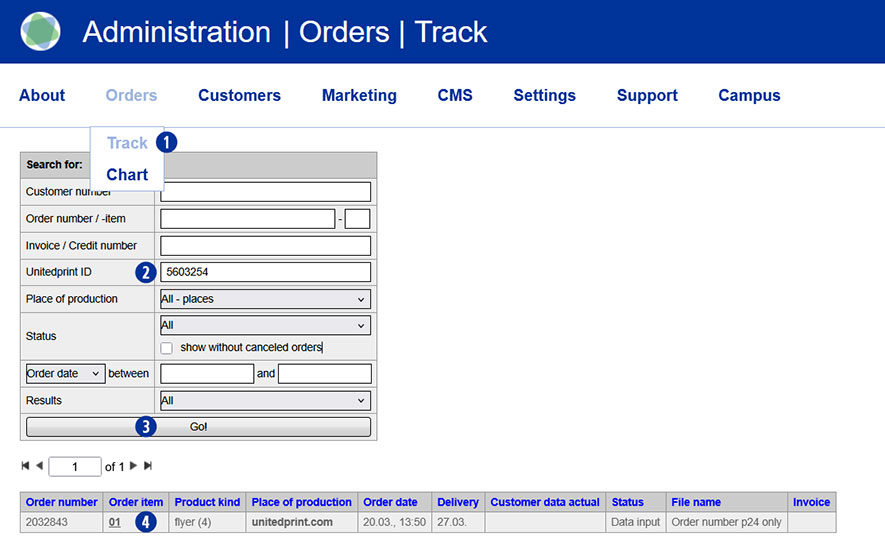
Switch to the Partnershop backend – Orders / Track. [1]

Enter the print24 order number you have in the ‘Unitedprint ID’ input field. [2]

Confirm your entry by clicking on the ‘Go!’ button. [3]

Click on the respective order item (e.g. 01) in the ‘Order item’ column for a detailed view of the order. [4]

The desired partner shop order will be displayed as a result. [5]

What can I do if I can’t log in or can’t add anything to my shopping basket?

Would you like to log in to your partner shop and realise that it is not possible to log in despite entering the correct user data?
Or would you like to add a product to your shopping basket and instead you keep being redirected to the homepage of your Partnershop?

In such a case, it may be necessary for you to manually delete the shopping basket of your Partnershop.

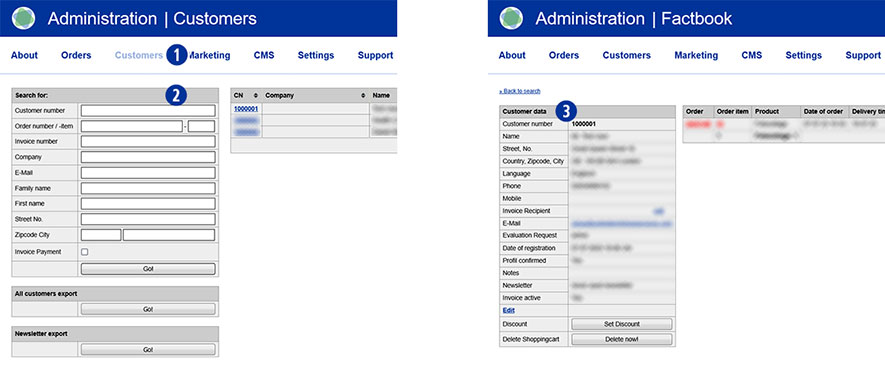
To do this, switch to your Partnershop backend – Customers. [1]

Search for your customer number, name, e-mail address, etc. [2]

The desired customer profile is displayed as a result. [3]

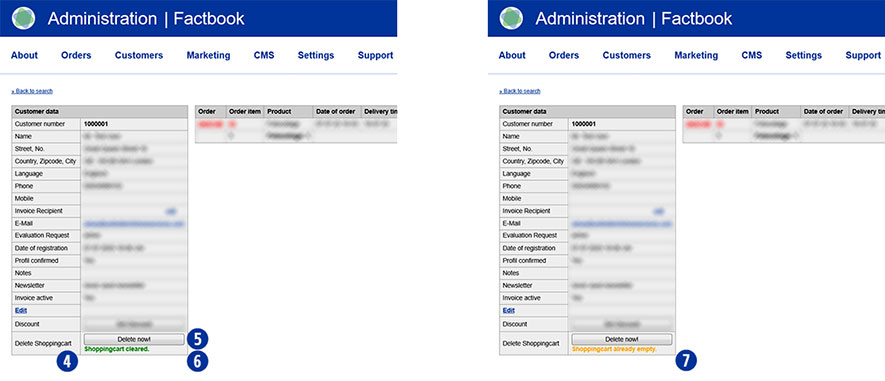
In the ‘Customer data’ module, you will find the ‘Delete shopping cart’ line at the end. [4]

Click the ‘Delete now!’ button. [5]

The message ‘Shopingcart cleared.’ appears. (highlighted in green). [6]

Then go back to the homepage of your Partnershop and place an order.

Log in with your login data. The shopping basket has been emptied in the background.

Now continue with your order.

Note

Depending on whether and when you were last logged in with the selected user, the message ‘Shopingcart already empty’ appears after clicking on the ‘Delete now!’ button. This means that there is no saved shopping basket data for this user. [7]

Why are my changes in the Partnershop backend CMS module not displayed in the shop?

If you make changes in the Partnershop backend CMS module but these are not visible in the shop, there may be various reasons for this.

Publish changes
Content changes that you make via the Partnershop backend CMS module must be saved and published in order to display them in the shop.

Details can be found here.
Publish

Empty cache
Empty the cookies and cache in your browser, refresh the page and check again.

Contact support
If the problem persists, our support team will be happy to help you.
2lvl-support@unitedprint.com

How can I customize the appearance of my shop?

Your Partnershop is based on the Unitedprint portal print24.com both in terms of technical scope and external appearance.

In the Partnershop there is the possibility of individualization including adaptation to the corporate design of your company.

Important information at a glance


Your customization options in detail

How do I set up a DNS record with my domain provider?

In order for your domain addresses to be able to call up the Partnershop, the following DNS settings are required at your domain provider.

Domain Typ DNS-Eintrag
meinedomain.de ANAME uss.meinedomain.de
www.meinedomain.de* CNAME uss.meinedomain.de
uss.meinedomain.de CNAME elb.unitedprintshopservices.com
meinedomain.de TXT/SPF v=spf1 include:sendamail24.com -all
* optional

The use of more than two addresses (domain + subdomain) or two subdomains is not intended.

A domain may only have one SPF entry.

Notice
It is expressly recommended to choose a provider that supports ANAME Records.
If your provider does not allow the use of ANAME/ALIAS entries, an IP address can be assigned for this exceptional case.

Domain Typ DNS-Eintrag
mydomain.com A IP: XXX.XXX.XXX.XXX

Please contact our support team by email at 2lvl-support@unitedprint.com.
The use of an IP address to access the partner shop is only possible temporarily and with reservations.

What or who is Saferpay?

Saferpay is the payment system from Worldline | Six Payment Services for all online solutions. The cloud-based payment solution ensures the secure payment processing of all orders via your Partnershop. Saferpay provides access to a variety of payment methods and supports all known payment methods, including those of third-party providers.

What or who is Worldline | Six Payment Services?

Worldline | Six Payment Services is a so-called Payment Service Provider (PSP), through which your customers are offered various online payment methods within the Partnershop. Six Payment Services has contracts and technical connections with the individual online payment services and thus acts as a link between the merchant and the merchant bank.

The operation of a USS Partnershop does not necessarily require registration with Six Payment Services, as your customers do too
Offline payment methods are available (invoice, payment in advance). However, we recommend activating online payment methods. To do this, you need to register with Six Payment Services. This takes place via a separate process.
If you have any questions, please contact the Setup Manager at the following e-mail address: setup@unitedprintshopservices.com

The following online payment methods are currently available to you when you register for Six Payment Services.

  • Credit card
  • Direct payment (SOFORT)

Do I need a separate domain?

If you want to use your Partnershop under your own domain you need a domain / subdomain.
You may, if not yet available, reserve through a Internet provider.

Examples
mydomain.com
www.mydomain.com

Do I need webspace on my Internet provider?

For the Partnershop you do not need a web space (space for files on a Webserver) at your provider. Your entire shop is installed on the USS servers. A separate installation with you or your provider is not necessary.

What should I consider when placing a trial order?

Please, inform within 15 minutes after completion of order our support team Phone (länderspezifisch) / support@print24.de.
Otherwise, your trial order needs to be paid. Additionally please cancel your trial order directly into your Partner backend.

For callback please hold ready the United Print ID of each order.

Will print files be checked?

In case the place of production of your order item is Unitedprint: Yes.

Please note:
The automated forwarding of file check information mails to your customers is currently inactive (until June 2016). Please be prepared to forward such information manually to your customers.

There are two file check options for your customers to choose from: A free file check and a premium file check.

Free file check:
Free check of your data for a general printing usability. You will receive our file check feedback within 6 hours after the receipt of your data. Please note that your print data will not be checked for quality.

For example, your data will not be checked for:
– Resolution
– Trimming
– Objects in trim area
– Transparencies
– Bitmap-fonts
– Folding measures
– Color mode

However, if errors – restricting the printing – are found, we offer you three possibilities:
a) Re-delivery of corrected data
b) Approval for printing; this means you will have your artwork printed without further amendments (subject to type of error)
c) Change of order

Premium File check:
This service offers you a personal and comprehensive check of the quality of your print data as well as a file check with time-guarantee.

Your print data is checked based on the following criteria:
– Data matches your order (page format, number of pages, colour space, special colours)
– General useability (minimum size, file type, password, corrupt data, export errors, objects outside the printing area, RGB)
– Line thickness (min. 0.25 mm)
– Colour mode (CMYK, special colours excepted)
– Colour channel layout
– Page orientation/layout
– Overprinted elements
– (Embedded) text
– Printable comments
– Layers
– Data quality
– Bleed (2 mm)
– Setup (individual pages; magazine covers as double pages)
– Resolution (min. 300 dpi; A1 and A0: 150 dpi)
– Folding methods
– Displacement
– Transparency
– Objects in the bleed 1.5 mm from the cutting edge
– Printing area correct
– Stamping requirements

If errors – affecting the print result in a negative way – are found, we offer you four possibilities:
a) Re-delivery of corrected data
b) Processing of your data by our team (subject to type of error)
c) Approval for printing; this means you will have your artwork printed without further amendments (subject to type of error)
d) Change of order

What happens when files cannot be printed?

Dealing with faulty data decides with the filecheck option selected when ordering. The following two options are available:

  • Basic check (free)
  • Premium-Check (including correction, paid)

If the premium data check was selected by your customer, mistakes can often be remedied by our team independently.

If new data are required, information is sent by e-mail to you as a partner as well as to the customer.

Example: e-mail content
–>
Dear Mrs./Mr.,

Thank you very much for your order! Our free Basic-Filecheck has led to the following result:

  1. Customer request not possible:

Your editing request cannot be processed.

Unfortunately, our team cannot correct the errors listed. Therefore we would like to ask you to send us corrected and complete printing data (all pages for order).

Please confirm in the detailed listing of your order (under MyOrders http://myshop.com?orderstep=1_cstmzng&id=2473) that you sent fully corrected printing data. Otherwise we cannot proceed with your order!

PLEASE CONSIDER: Without your response at MyOrders ‘Artworking’, we cannot proceed with your order.
<–

For a new data upload, it is necessary for your customer to use the link from e-mail above. The link leads directly to the order overview (orders). [1]
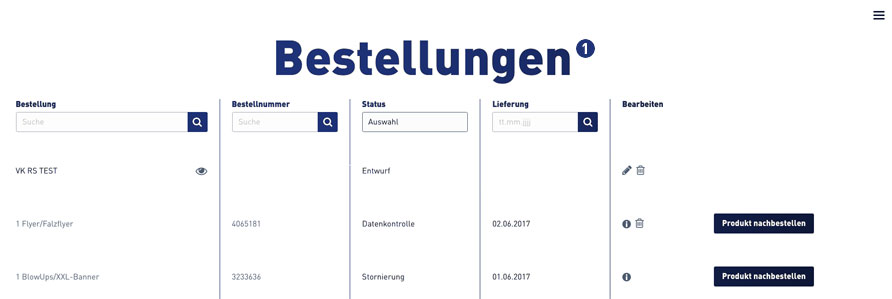
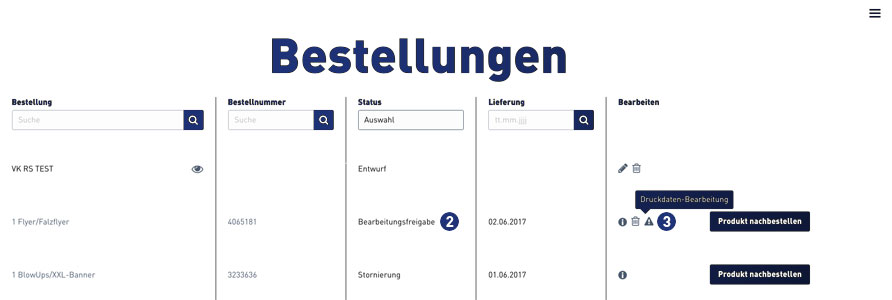
Select the relevant order within the order overview. Jobs that require new print data to be uploaded have the status “Processing approval”. [2]
A warning symbol [3] is displayed at the corresponding order item in the “Edit” column, which must be clicked by the customer.
 

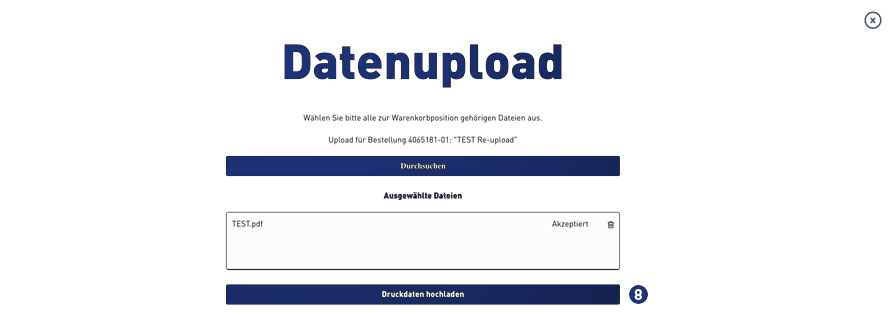
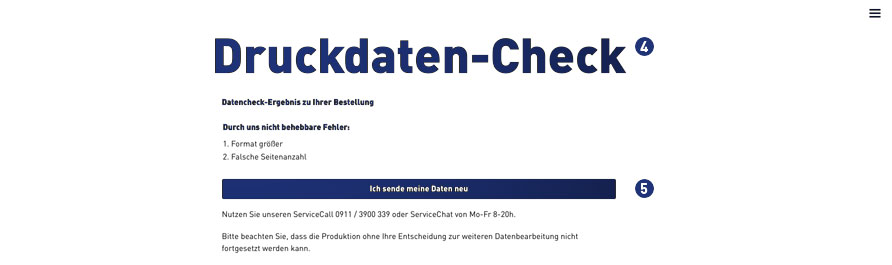
After clicking on the warning symbol, the following window opens for the print data check. [4] Confirm the link “I’m sending my data” to continue. [5]
For further processing, the indicated and following instructions must be observed. [6-9]

Select print job, click on “Upload print data”
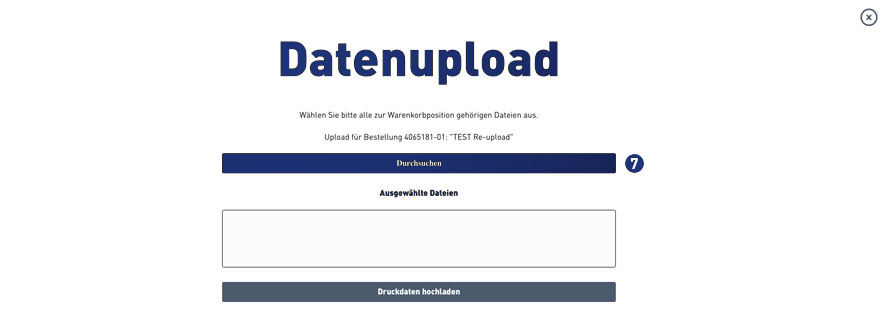
Select print data – click “Browse”

Analysis of the print data – accepted – click on “Upload print data”
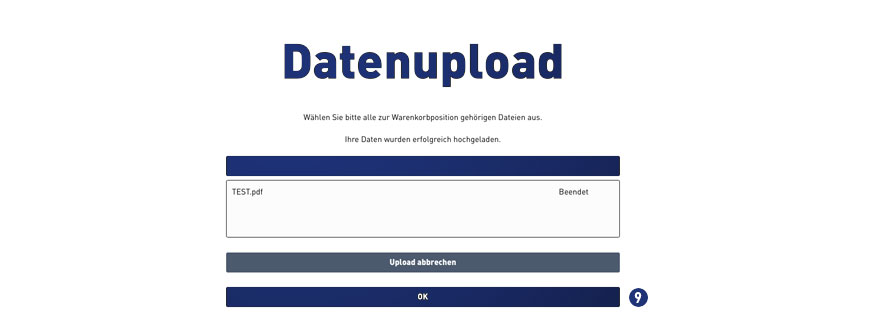
Status file upload – when “finished” continue with click on button “OK”

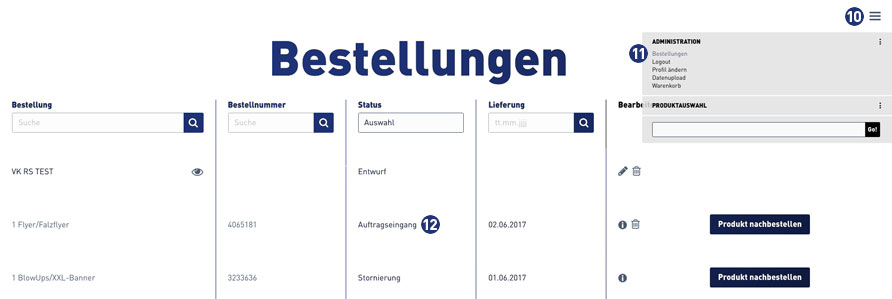
Then change to the order overview via the burger menu [10]. Click on the link “Orders”. [11]

When the file upload is completed successfully, the status in the order overview for this order automatically changes to “Order Inbox”. [12]
I received an order item to be produced by myself: Can I hand that order to Unitedprint?

In case an order item was selected to be produced by yourself, this is the case because the item ordered is in correspondence with your settings in the backend section “place of production”, where you define which items you want to produce. However, in case you now received such an order but you’re not interested in producing it (e.g. because you changed your mind or because you’re out of paper) you can hand it to Unitedprint. To do so, select the order item in “Track” and click the “Reject order” option in the top section of the order view. You will be charged the price displayed.

What is a Screenproof?

This additional special allows your customers to select during the calculation to make a screen proof of their product. To do this, select “Screen proof” from the menu item “Proof”.

If your customer chooses the Screen proof option, he receives the link to the proof release via e-mail. The link leads to the order overview of your customer via the login page of the Partnershop. There, the customer can issue the print approval by means of the Screen proof or re-upload corrected print data after rejecting the Screenproof.

Attention
The display is in a resolution of 150 dpi. Due to the RGB color mode of the monitor, it is not colored.
Oblique texts and elements are displayed edged by the device-dependent resolution of monitors (72 or 96 dpi).

There is a time window of approx. 60 minutes for the Screen proof.
In the case of orders with the option Screen proof, which are ordered and released after 11.00 am, work can be extended by a full working day for each working day of the subsequent release.

Can I change my backend password?

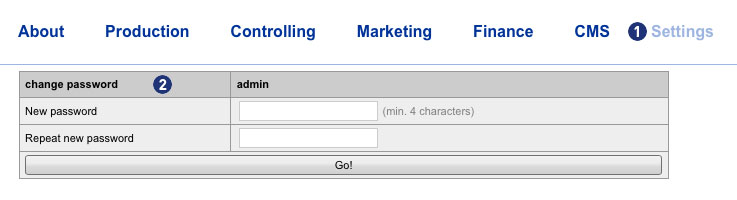
Yes. Log in to the Partnershop backend with the login data sent to you.
Then change in the menu Settings [1] to the module “change password”. [2]

Enter your new password in the input field “New password” [3]. Repeat your entry in the field “Repeat new password”. [4]
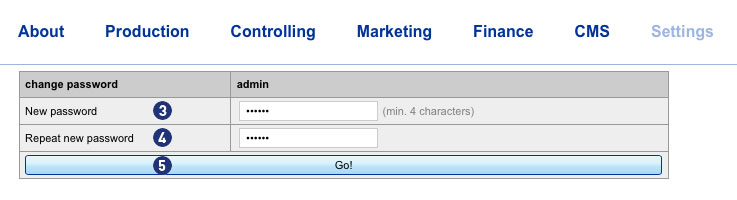
Confirm your entry by clicking on the button “Go!”. [5]

The next backend login is then only possible with the new password.

Note
The new password must be at least 4 characters long.
The entered password and its repetition must not be different.

Can my customer send an order in his name?

Yes. You can allow selected customers to change the sender’s address for an order and thus to send the order in their own name. The prerequisite for this is that the respective customer is a registered user and has the status “Reseller”.

There are two ways to get the status “Reseller” for registered customers in your Partnershop:

  1. Automatic assignment of the status “Reseller” when registering in the Partnershop.
    The customer can already select the customer card “reseller” when logging into the Partnershop.
  2. Manual award status “Reseller” by request of the customer from them.
    The customer gets the status “Reseller” on request (e-mail, phone) awarded by them.

The status (Reseller) will setup via the backend in Marketing > Customers area. By click the button “Edit” you can change the “Key Account Type” of the customer.

With the status “Reseller”, the customer is given the option of entering a different sender’s address in the first order step. To do this, the checkbox “Change sender’s address” is selected.

Users without the status “Reseller” will not see the selection “Change sender’s address” in the first order step.
By default, the Neutral Shipper Address (Backend > Settings > Sender’s address) is used as sender.

Note
The function “Different sender’s address” is only available for registered users – but not for guest users.

Are there any periods for maintenance?

Yes, maintenance work is planned for your Partnershop every Monday from 12:00 to 18:00.

During this period, your Partnershop will be unavailable for approx. 30 minutes. Your Partnershop will be put into maintenance mode.

Please note that you do not make any changes during this time via the Partmershop backend.

I received a USS Partner Shop. What are my first steps?

Welcome at Unitedprint Shop Services!

When you receive your USS Partner Shop, it is already live, meaning that customers can already place orders, which will be forwarded to Unitedprint for production.

However: To fully customize your USS Partner Shop, please follow these 5 last steps:

  • Upload an invoice template in PDF-Version 1.4 (Acrobat 5.x). To do so, please go to the backend section Finance. A sample template is being provided.
  • Define your bank details for accounts receivable. Customers using payment in advance will be informed about these details. You define these details in the backend section Finance.
  • Customize your pricing: As a default setting, you use the pricing (+10%) as Unitedprint. To change this, please change the pricing settings in the backend tool Pricing (in the Marketing section).
  • Production: As a default setting, all orders are being forwarded to Unitedprint for production. To change this, please change the production settings in the backend tool Place of Production (in the Production section).
  • Please check all pages for accuracy – especially your legal details such as Terms and Conditions, Privacy Policy and your Imprint. You can make changes to these pages in the Text tool (in the CMS section).

Extra
Your USS Partnershop initially only offers so-called offline payment methods (purchase on account, purchase in advance).
In order to also be able to offer your customers online payment methods, you need to register with the payment service provider
Six Payment Services required. This takes place via a separate process.
If you have any questions, please contact the Setup Manager at the following email address: setup@unitedprintshopservices.com

Having completed these 5+1 steps, you can fully focus on promoting your USS Partner Shop.