How is the print data upload done?

If desired, the print data can now be selected and uploaded on the calculation page. In addition, there is the option of viewing the uploaded print data via a preview function after the upload process.

On the calculation page, there is a selection list with the name “Print data”. Here, you can choose between the following options.

  • Transfer print data later
    The upload takes place as usual after order completion including print data preview.
  • Upload print data now
    The upload takes place directly on the calculation page including print data preview.

After selecting one of the options above, a layer for the login or guest login is displayed.

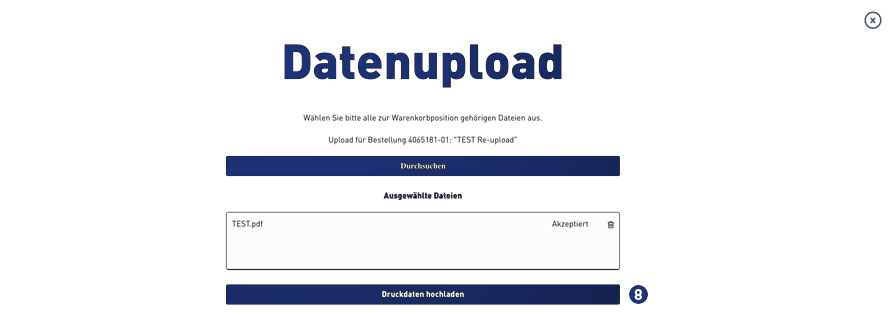
Log in there with your user data. Then select the desired print file. Click on the button “Choose print data”. The selected file will be displayed in the window above. Confirm your selection with the button “Upload print files”. The upload process is displayed via a status bar.

Afterward, you have the opportunity to preview and check the previously uploaded print data. Click on the button “Show uploaded print data”.

If the data are correct, confirm your selection via the button “Use uploaded print data”. Otherwise, you can delete the print data. Click on the button “Delete uploaded print data”. You will be redirected to the selection window for the print data upload.

Afterward, you get back to the calculation page. In the selection list “Print data” the selected upload option as well as a preview link (View) are displayed.

Note
Due to security issues, uploading archive files (e.g., zip, rar, tar, gz, etc.) is no longer possible.
Where can I see the order status for an order?

Orders received in the Partnershop go through different statuses, which are displayed in the Partnershop backend.

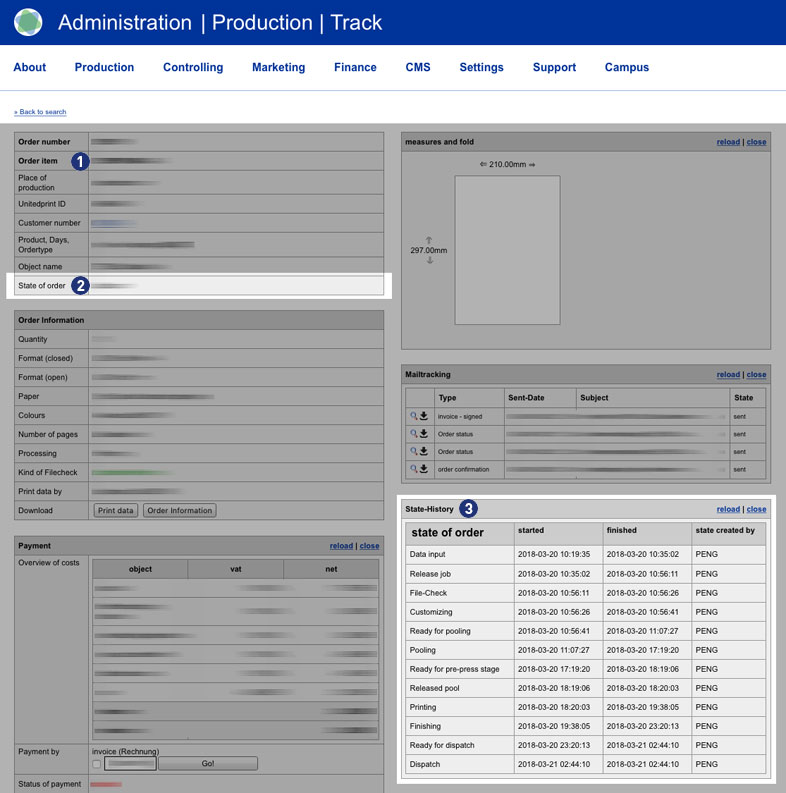
Under Order > Track > Detail view in the module Order number [1], the current order status can be viewed in the field State of Order [2]. The status update is automatically done in the background.

The module State-History [3] chronologically lists the completed order statuses for an order.

The order status of an order can provide information if an order from the Partnershop can not be transferred to Unitedprint.

Status: Data Input
Data upload – Print data not uploaded
Payment in advance – receipt of payment not confirmed
Payment – Online Payment has not set Clearance

Status: Waiting for Customize-Release
Data upload – Missing new print data after data check

Status: Waiting for Proof-Release
Release – Proof approval of partner shop customer is pending

The following statuses can be displayed for an order.

Status Beschreibung
Data input ¹ Data input
Release job ² Release job
File-Check File-Check
Waiting for Customize-Release Waiting for Customize-Release
Customizing Customizing
Waiting for Proof-Release Waiting for Proof-Release
Ready for pooling Ready for pooling
Pooling Pooling
Ready for pre-press stage Ready for pre-press stage
Printing Printing
Self-Production Self-Production
Finishing Finishing
Ready for dispatch Ready for dispatch
Dispatch Dispatch
Cancellation Cancellation

Notes
¹ If the payment status “Payment in advance” has been confirmed, the print data has been uploaded but the order status “Data input” is still displayed after approx. 15 minutes, please contact the support.
² If the order status “Release Job” is still displayed after approx. 15 minutes, there is usually a payment problem between you as the Partnershop owner and print24. Please contact the support.

I received an order to be produced by myself: What do I need to do?

You have received an order that corresponds to the specifications you made for your own production. At these orders, you are responsible by yourself for checking print data, for production and for dispatch of the goods. In addition, you have to care for the status of the purchase order (“Production” – “Track” – select the appropriate order – “State of order”).

Other steps in the process (e.g., payment verification, print data transfer, etc.) run automatic and without your intervention. Or are dependent on your correct status maintenance in the backend (e.g., dispatch of shipping confirmation mails and billing documents with the dispatched state).

How can I define which orders I want to produce myself?

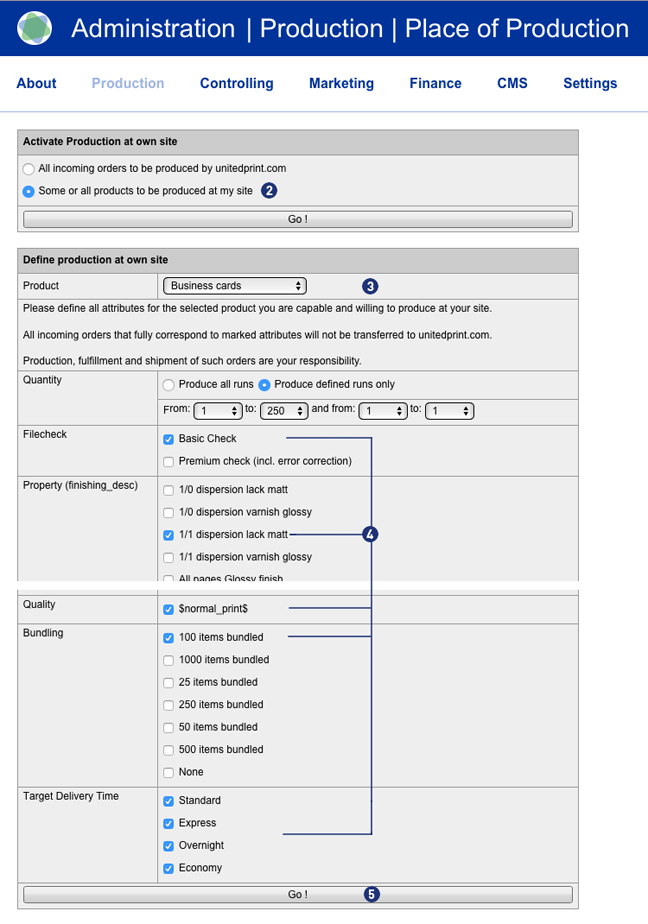
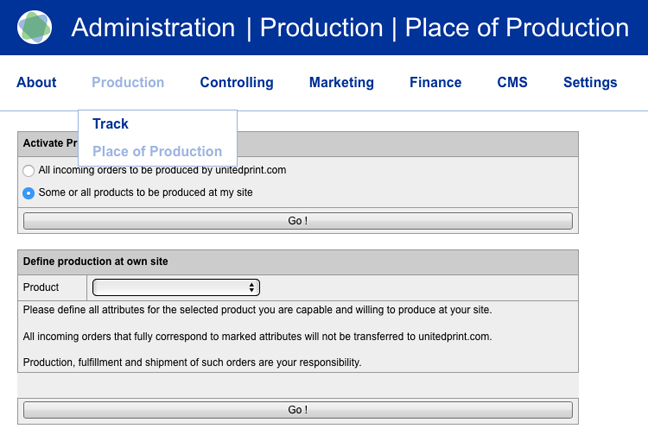
Your USS Partnershop allows you to produce your customers’ orders. You can make the settings in your Partnershop Backend under the menu item “Production” – “Place of Production”.[1]

First, activate the radio button „Some or all products to be produced at my side“.[2] Now select the product for which you want to make the settings.[3] Then indicate your production capabilities: Select the product options you are able to provide (e.g. a certain kind of paper or finishing).[4] Confirm your settings by clicking the “Go!” button.[5]

Only when an order item fully fits your individual settings, the order will be classified as an order for your own production.

Attention
Please consider that for every product attribute, at least one option needs to be selected (even when it’s not displayed in the shop frontend) – otherwise, an order item of this product will never be defined as one for your production.

All product options are offered to their customers no matter where they are produced.

What should I consider when placing a trial order?

Please, inform within 15 minutes after completion of order our support team Phone (länderspezifisch) / support@print24.de.
Otherwise, your trial order needs to be paid. Additionally please cancel your trial order directly into your Partner backend.

For callback please hold ready the United Print ID of each order.

I really get the order within the indicated delivery time?

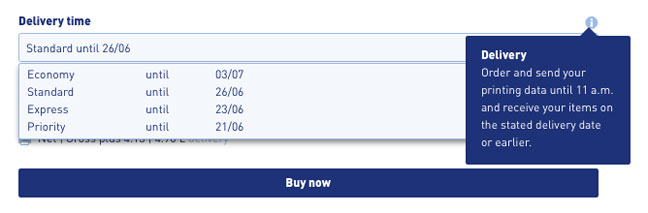
To ensure that an order is delivered at the indicated delivery time, an order must be triggered by 11:00 CET / CEST at the latest and the print data upload must have been completed. This applies if the order is placed on a weekday (Monday-Friday).

For orders which have not been received by this time, the indicated delivery date shifts by + 1 working day.

I received an order to be produced by Unitedprint. What do I need to do?

Unless the selected payment method is “payment in advance” you don’t need to do anything. The order will automatically be forwarded to Unitedprint. File checks, production, and shippments to your customers will all be handled by Unitedprint. You can track the status of orders in your backend. As soon as an item was shipped, your USS partner shop sends a shipping confirmation mail to your customer including the invoice document.

All of this happens without any involvement on your side. However, since Unitedprint will never directly contact your customers, you should be available for queries of customers or Unitedprint.

In case the selected payment method of an order is “payment in advance”, you need to check whether you have received the payment and release (mark as “Paid”) the individual order items. Only then the items will be forwarded for production.

Will print files be checked?

In case the place of production of your order item is Unitedprint: Yes.

Please note:
The automated forwarding of file check information mails to your customers is currently inactive (until June 2016). Please be prepared to forward such information manually to your customers.

There are two file check options for your customers to choose from: A free file check and a premium file check.

Free file check:
Free check of your data for a general printing usability. You will receive our file check feedback within 6 hours after the receipt of your data. Please note that your print data will not be checked for quality.

For example, your data will not be checked for:
– Resolution
– Trimming
– Objects in trim area
– Transparencies
– Bitmap-fonts
– Folding measures
– Color mode

However, if errors – restricting the printing – are found, we offer you three possibilities:
a) Re-delivery of corrected data
b) Approval for printing; this means you will have your artwork printed without further amendments (subject to type of error)
c) Change of order

Premium File check:
This service offers you a personal and comprehensive check of the quality of your print data as well as a file check with time-guarantee.

Your print data is checked based on the following criteria:
– Data matches your order (page format, number of pages, colour space, special colours)
– General useability (minimum size, file type, password, corrupt data, export errors, objects outside the printing area, RGB)
– Line thickness (min. 0.25 mm)
– Colour mode (CMYK, special colours excepted)
– Colour channel layout
– Page orientation/layout
– Overprinted elements
– (Embedded) text
– Printable comments
– Layers
– Data quality
– Bleed (2 mm)
– Setup (individual pages; magazine covers as double pages)
– Resolution (min. 300 dpi; A1 and A0: 150 dpi)
– Folding methods
– Displacement
– Transparency
– Objects in the bleed 1.5 mm from the cutting edge
– Printing area correct
– Stamping requirements

If errors – affecting the print result in a negative way – are found, we offer you four possibilities:
a) Re-delivery of corrected data
b) Processing of your data by our team (subject to type of error)
c) Approval for printing; this means you will have your artwork printed without further amendments (subject to type of error)
d) Change of order

What happens when files cannot be printed?

Dealing with faulty data decides with the filecheck option selected when ordering. The following two options are available:

  • Basic check (free)
  • Premium-Check (including correction, paid)

If the premium data check was selected by your customer, mistakes can often be remedied by our team independently.

If new data are required, information is sent by e-mail to you as a partner as well as to the customer.

Example: e-mail content
–>
Dear Mrs./Mr.,

Thank you very much for your order! Our free Basic-Filecheck has led to the following result:

  1. Customer request not possible:

Your editing request cannot be processed.

Unfortunately, our team cannot correct the errors listed. Therefore we would like to ask you to send us corrected and complete printing data (all pages for order).

Please confirm in the detailed listing of your order (under MyOrders http://myshop.com?orderstep=1_cstmzng&id=2473) that you sent fully corrected printing data. Otherwise we cannot proceed with your order!

PLEASE CONSIDER: Without your response at MyOrders ‘Artworking’, we cannot proceed with your order.
<–

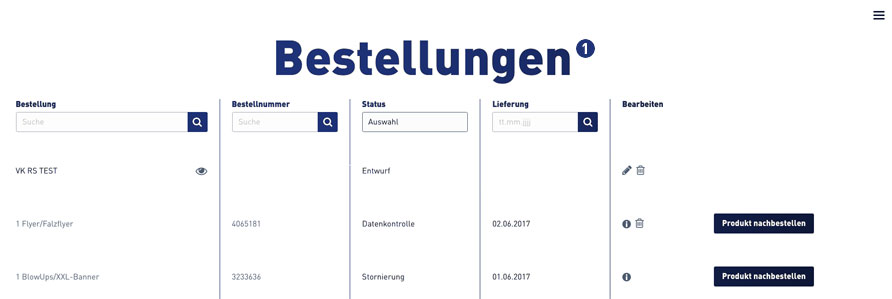
For a new data upload, it is necessary for your customer to use the link from e-mail above. The link leads directly to the order overview (orders). [1]

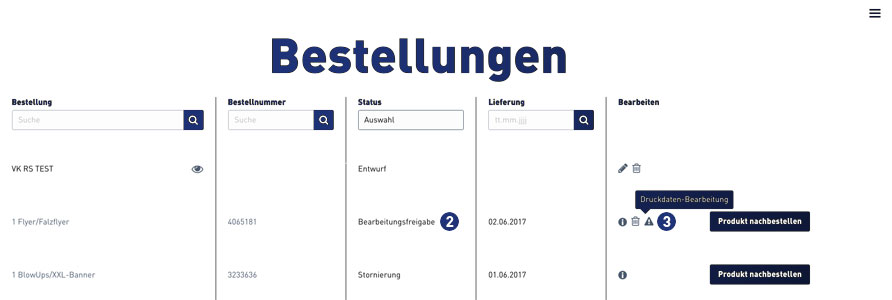
Select the relevant order within the order overview. Jobs that require new print data to be uploaded have the status “Processing approval”. [2]
A warning symbol [3] is displayed at the corresponding order item in the “Edit” column, which must be clicked by the customer.


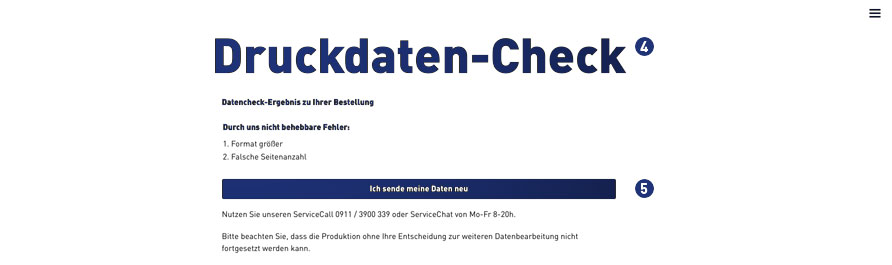
After clicking on the warning symbol, the following window opens for the print data check. [4] Confirm the link “I’m sending my data” to continue. [5]

For further processing, the indicated and following instructions must be observed. [6-9]

Select print job, click on “Upload print data”
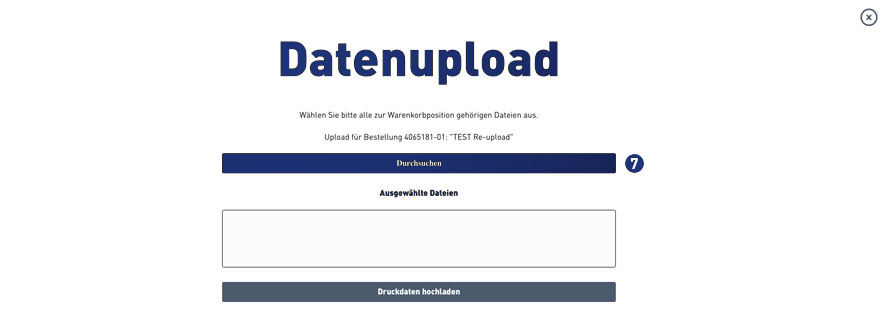
Select print data – click “Browse”

Analysis of the print data – accepted – click on “Upload print data”
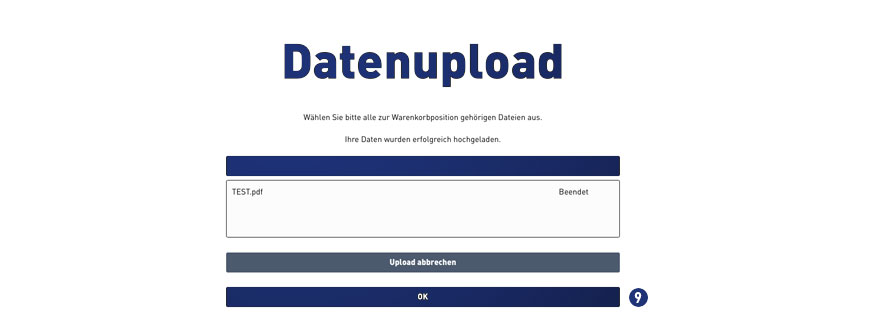
Status file upload – when “finished” continue with click on button “OK”
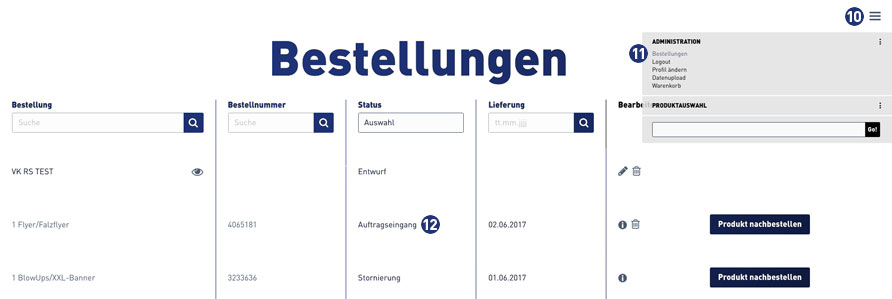
Then change to the order overview via the burger menu [10]. Click on the link “Orders”. [11]

When the file upload is completed successfully, the status in the order overview for this order automatically changes to “Order Inbox”. [12]

I received an order item to be produced by myself: Can I hand that order to Unitedprint?

In case an order item was selected to be produced by yourself, this is the case because the item ordered is in correspondence with your settings in the backend section “place of production”, where you define which items you want to produce. However, in case you now received such an order but you’re not interested in producing it (e.g. because you changed your mind or because you’re out of paper) you can hand it to Unitedprint. To do so, select the order item in “Track” and click the “Reject order” option in the top section of the order view. You will be charged the price displayed.

Is a combined shipment possible?

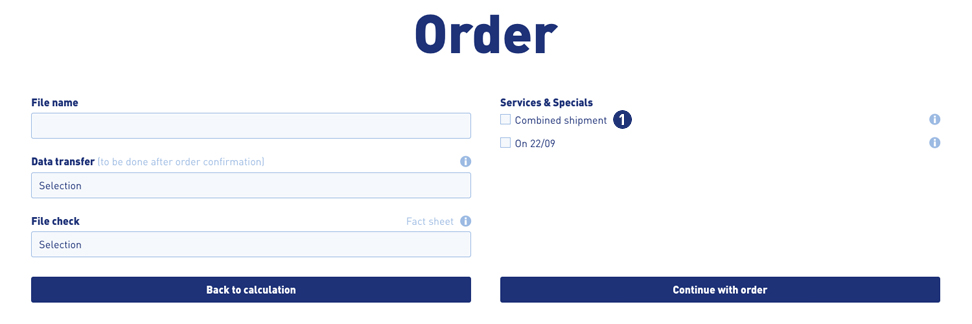
Yes. If your customers orders several items with the same product properties, these items can be shipped collectively. For these positions, your shop will offer a shipment voucher.

During the ordering process, your customers have the opportunity to select the option “Combined shimpment”. To do this, select the checkbox “Combined shimpment”. [1]

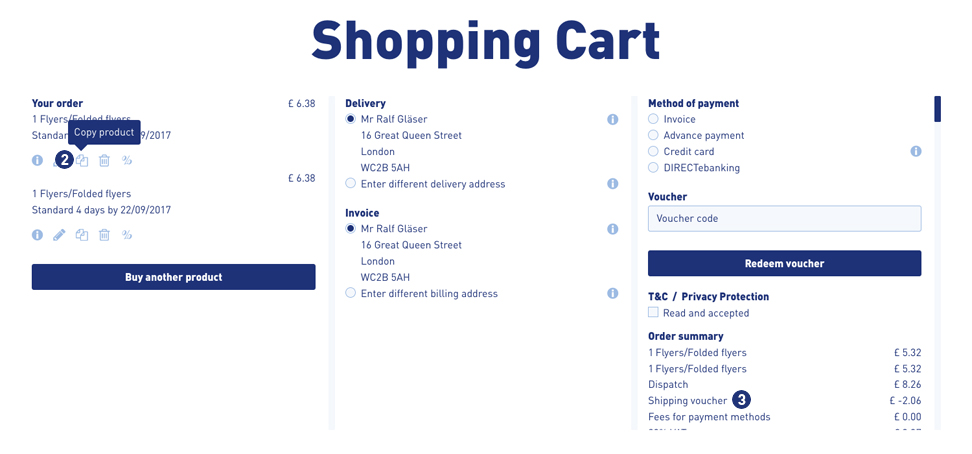
You can use the function “Copy product” in the shopping cart [2] to create several items of the previously configured item (for example, business cards) and to order these with a corresponding dicoount as a collective shipment. The result is displayed in the calculation overview in the shopping cart. [3]

Alternatively, it is possible to configure the same product once or several times over the calculation page and place it in the shopping cart.

Note
An order with the option “combined shipment” is not triggered to production until the print data has been uploaded to all items.
The delivery date changes for the entire order!

How can I see which items an order contains?

In the Partnershop backend please click “Production” and select “Track”. Enter the necessary parameters (for example, order number or order date) into the search mask and start the query. Please review the columns “Order number” and “Product kind” in the order detail view. If there are several items for an order, they are displayed underneath each other for the respective order number under “Product kind”.

How can I check the current status of my order?

In the Partnershop backend please click “Production” and select “Track”. Enter the necessary parameters (for example, order number or order date) into the search mask and start the query. In the list overview, click on an item under “Product kind” (highlighted in color and underlined). In the detail view of order, you find the current order status under “State of order”.

Where can I get information about my completed orders?

In the Partnershop backend please click “Controlling”, select the desired parameters and start the query. The result of your query are displayed as a chart.

In addition, it is possible to print out the query result or export it as an Excel file.

Will I be informed about changes to my order?

Yes. We keep you informed about the progress of your order in the form of status messages by e-mail to the address stored in the system.

In parallel you can view the current order status at any time via the Partnershop backend Production > Track.

How can I review a completed order again?

To do this, enter the appropriate order number in the search field in the area Production> Track> Order number / item. Confirm the search by clicking the button “GO!”.

Note
Search requests for orders that have already been completed must be indicated by specifying the order number or the customer number. A general search for all orders is not possible for technical reasons. If you are looking for the customer number, the search result includes both – current and completed orders.

My customer would like to cancel an order item, which is produced by Unitedprint. What do I have to do?

Please follow these steps:

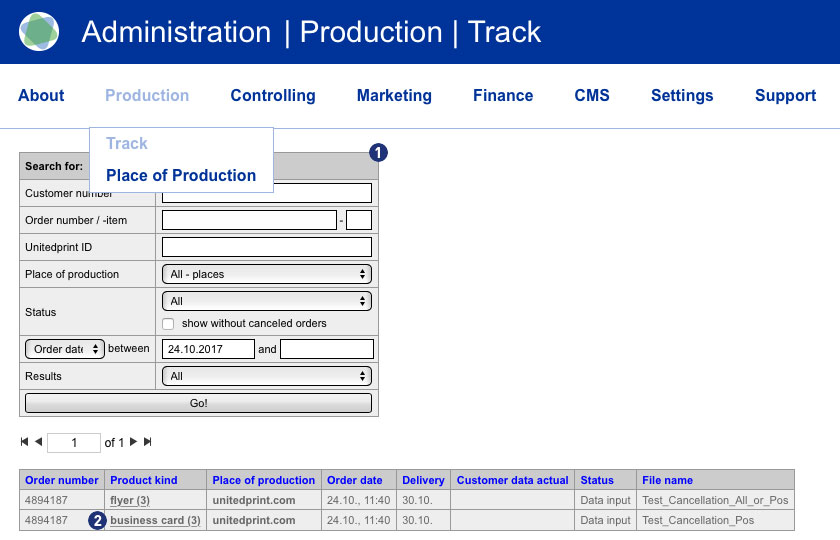
  1. Go to the Partnershop Backend menu> Production> Track and select the desired job. [1]
  2. Click on the respective order item in the column “Product kind” [2], which is to be canceled.
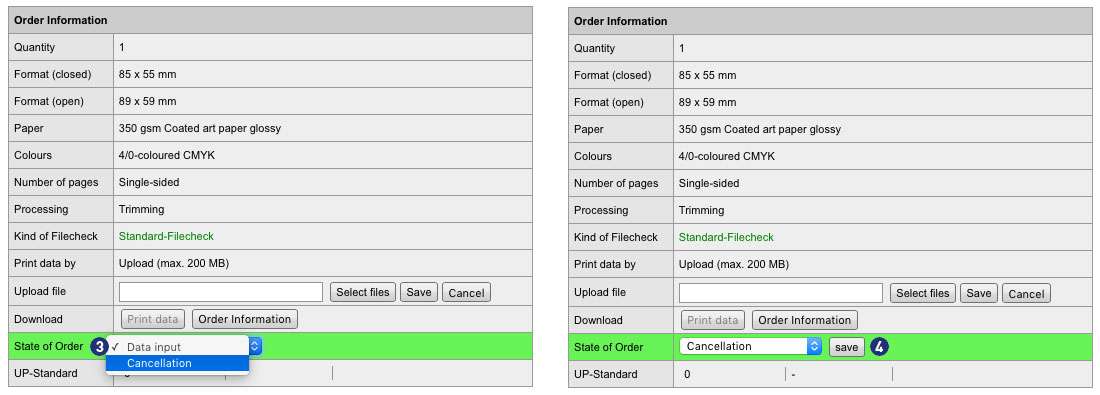
  3. Within the detail view in the module “Order information> State of order” select the item “Cancellation” from the drop-down list. [3]
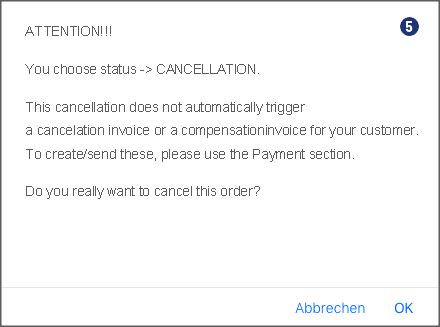
  4. Confirm your selection by clicking the button “Save”. [4] The following message is displayed. [5]

Note
If an invoice already exists for the order you canceled, you must create a separate cancellation invoice for the purchase order or purchase order item and send it to the customer. The details can be found in the section “How do I create a cancellation invoice?”

My customer wants to cancel an order item, which I produce myself. What do I have to do?

Please follow these steps:

  1. Go to the Partnershop Backend menu> Production> Track and select the desired job. [1]
  2. Click on the respective order item in the column “Product kind” [2], which is to be canceled.
  3. Within the detail view in the module “Order information> State of order” select the item “Cancellation” from the drop-down list. [3]
  4. Confirm your selection by clicking the button “Save”. [4] The following message is displayed. [5]
  5. Push the (partial) rebooking of your customer’s payment via your Worldline account.

Note
If an invoice already exists for the order you canceled, you must create a separate cancellation invoice for the purchase order or purchase order item and send it to the customer. The details can be found in the section “How do I create a cancellation invoice?“.

My customer complains about an order position, which was produced by Unitedprint. What do I have to do?

In general, you can operate your own customer complaints management. Therefore, you can accept or reject complaints claims by the customer – without consulting Unitedprint – even if Unitedprint was the producer of the complained goods.

Follow these three steps:

  1. Give your customers a new, reduced invoice (Backend area “Production” – “Track” – choose the appropriate order).
  2. Transfer the difference back to your customers (for example, from your Worldline Backend).
  3. Contact Unitedprint if you want to claim the article at Unitedprint.

My customer complains about an order which I have produced myself. What do I have to do?

In this case, you can accept or reject complaints claims from your customers – without consulting Unitedprint.

Follow these two steps:

  1. Give your customer a new, reduced invoice (Backend area > Production > Track).
  2. Transfer the difference back to your customers (for example, from your Worldline Backend).

If you are complaining about self-produced articles, please consider that the calculation basis for commissions charged to you remains the original selling price.

What is a Screenproof?

This additional special allows your customers to select during the calculation to make a screen proof of their product. To do this, select “Screen proof” from the menu item “Proof”.

If your customer chooses the Screen proof option, he receives the link to the proof release via e-mail. The link leads to the order overview of your customer via the login page of the Partnershop. There, the customer can issue the print approval by means of the Screen proof or re-upload corrected print data after rejecting the Screenproof.

Attention
The display is in a resolution of 150 dpi. Due to the RGB color mode of the monitor, it is not colored.
Oblique texts and elements are displayed edged by the device-dependent resolution of monitors (72 or 96 dpi).

There is a time window of approx. 60 minutes for the Screen proof.
In the case of orders with the option Screen proof, which are ordered and released after 11.00 am, work can be extended by a full working day for each working day of the subsequent release.