PayPal payment processing is not carried out via the Payment Service Provider Worldline | Six Payment Services, but directly between them and PayPal.
For you as a Partnershop operator, a PayPal business account is required.
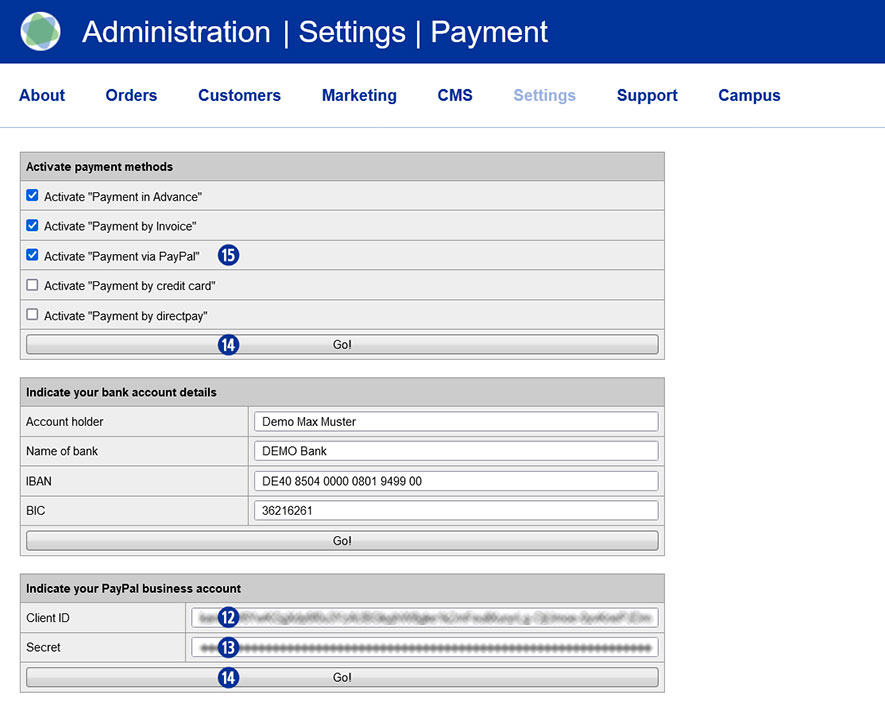
To use the payment method “PayPal” within your Partnershop, it is necessary to enter the data from the PayPal business account in the Partnershop Backend – Settings > Payment > Indicate your PayPal business account.
To do this, follow the steps below.
-
- Log in to your PayPal account. [1]
Use the URL https://www.paypal.com/mep/dashboard or go directly to the developer settings https://developer.paypal.com/dashboard/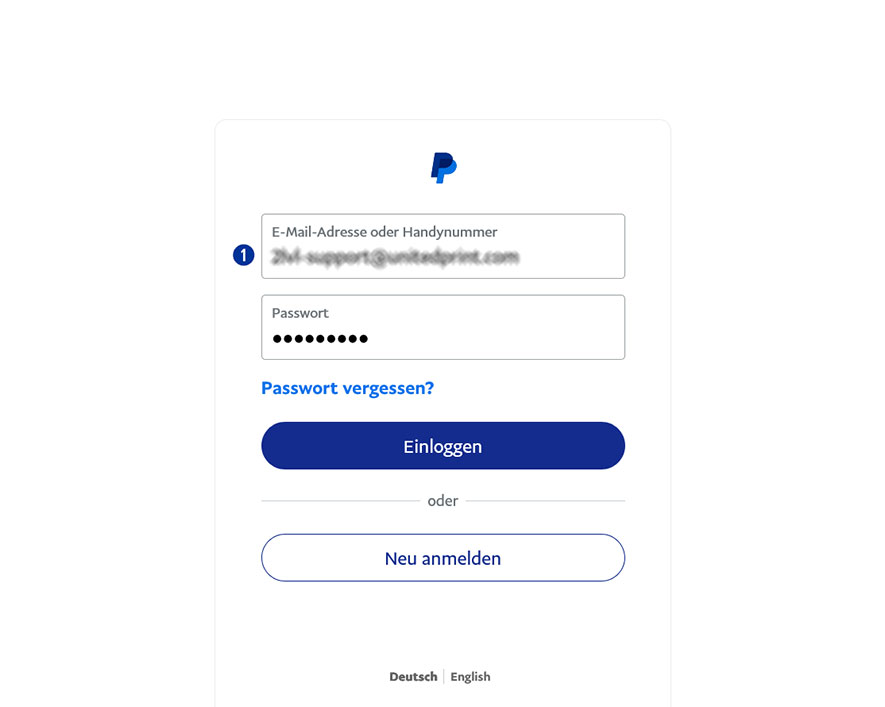
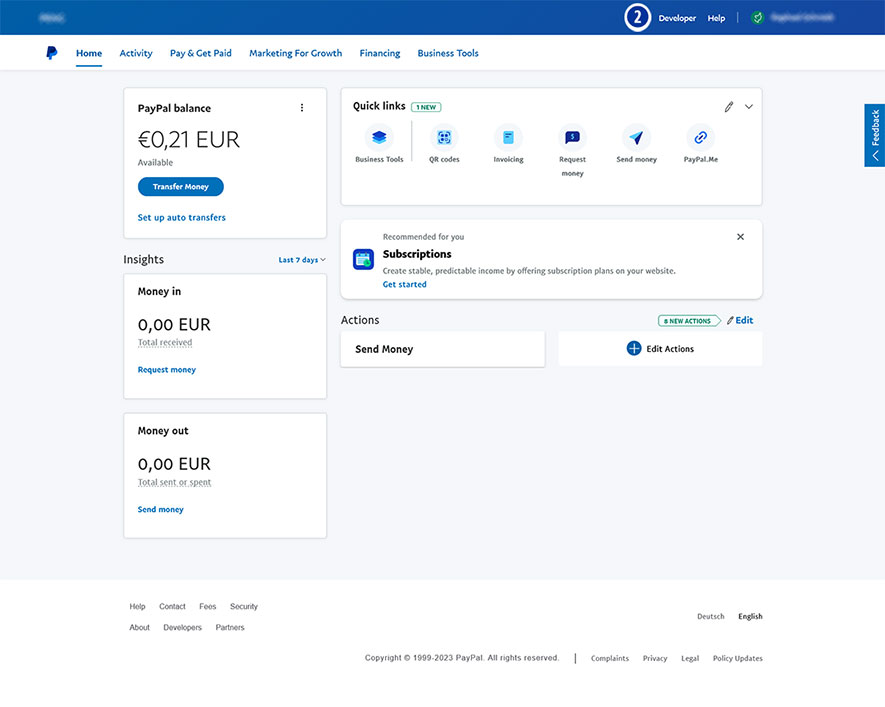
- Click the link “Developer” in the main navigation. [2]
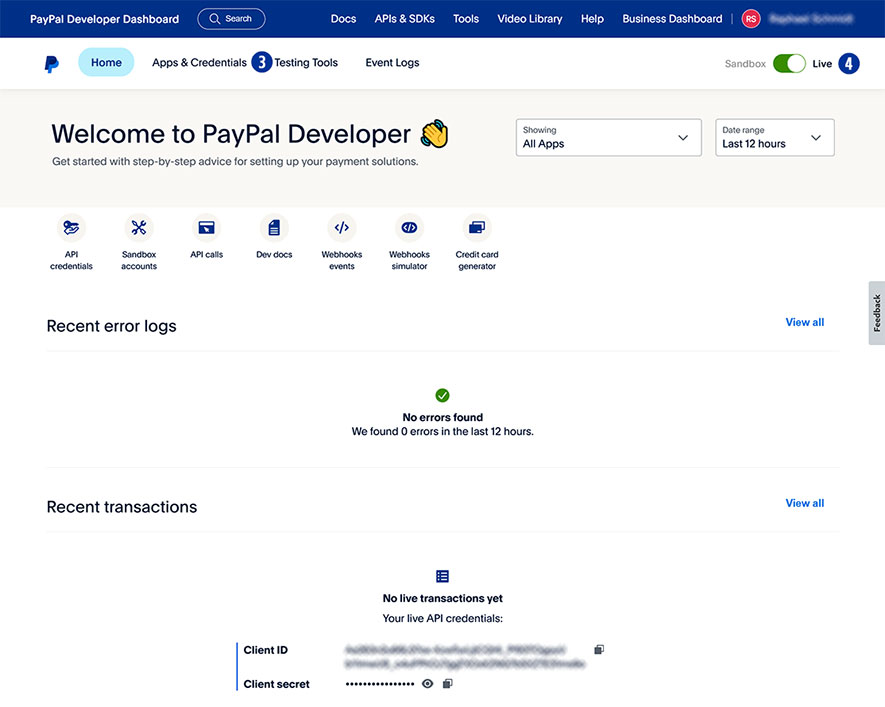
- Select “Apps & Credentials”. [3]
- Click the button “Live”. [4]
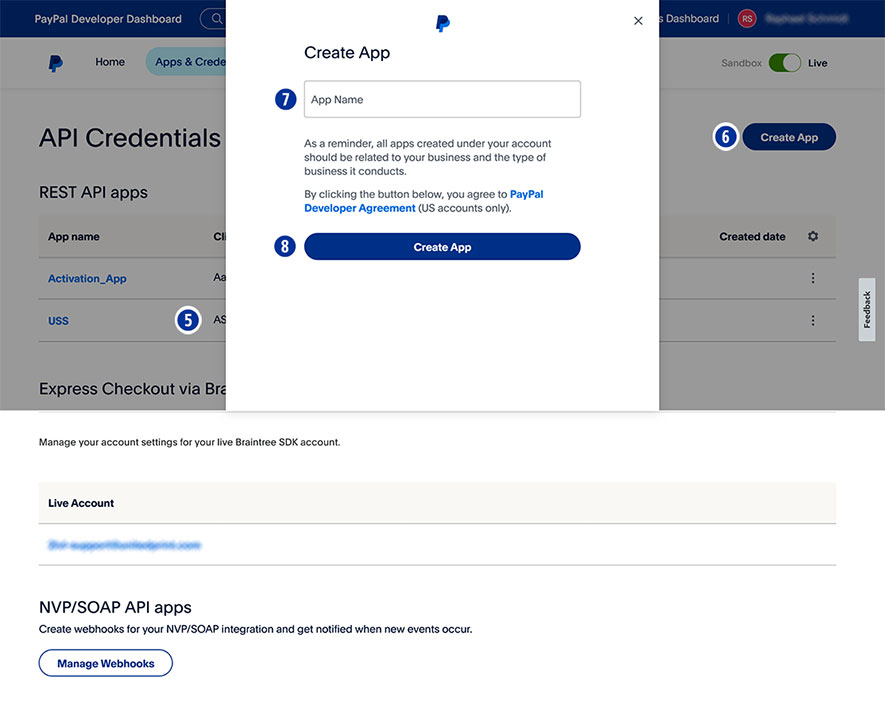
- Under “App name” select your shop name. [5]
- If there is no shop name yet, click “Create App” [6] and assign an “app name” for your Partnershop (e.g. brand name). [7]
- Confirm your entry by clicking the button “Create App”. [8]
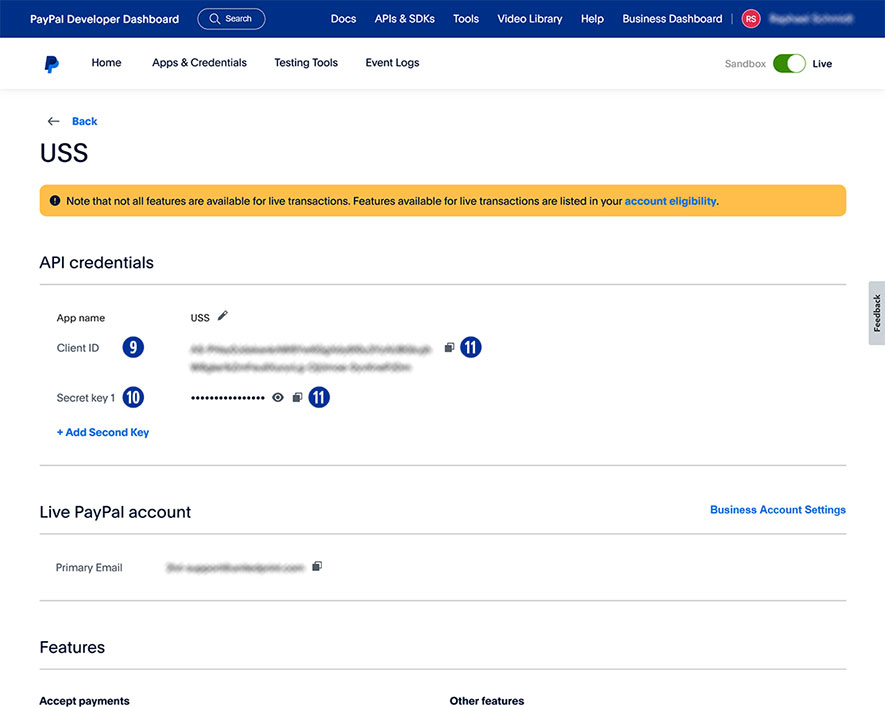
- Under “App name”, copy the “Client ID” [9] using the “Copy to clipboard” icon [11] and paste it into the Partnershop Backend – Settings > Payment > Indicate your PayPal business account. [12]
- Under “App name” copy the “Secret key 1” [10] using the “Copy to clipboard” icon [11] and paste it into the Partnershop Backend – Settings > Payment > Indicate your PayPal business account. [13]
- Confirm your entries by clicking the button “Go!”. [14]
- Finally, activate the payment method “PayPal” for all customers in the Partnershop backend – Settings > Payment > Activate “Payment via PayPal”. [15]
- Confirm your entries by clicking the button “Go!”. [14]
- Log in to your PayPal account. [1]