Yes. The search mask on the left contains a new filter “Invoice Payment”. [1]
If you activate the checkbox and then click the button “GO!” [2] all customers of your Partnershop with the payment method “Invoice” will be displayed. [3]
The filter remains active until it is deactivated by youself or left the page.
In your Partnershop Backend Marketing > Customers you will find all relevant information about your customers in the result overview on the right. [1]
- Customer number (CN)
- Company
- Name
- Register
- Profil changed
- Orders
- Order Revenue (Umsatzübersicht)
- Invoice
Display Order Revenue
By default, always 25 entries are displayed. The selection box [2] below the display can be used to change the number of results to 10, 25, 50 or 100 per page.
In the column “Order Revenue” [4] the total net sales of the respective customer is displayed..
Sorting
The columns “Customer number”, “Company”, “Name”, “Orders” and “Order Revenue”) can be sorted in ascending or descending order by clicking on the column name. [5] The results overview opens with ascending sorting of the column “Customer number”.
Display invoice payment and open invoices
In the result overview, another column “Invoice” is displayed to the right of the “Order Revenue” column. [6] It is shown graphically with an icon (green dot) [7], if the customer has the option “Invoice”.
In addition – in the case of open invoices – an info text (red) is displayed. [8]
Example
(2 unpaid) for two invoices not marked as “paid”
If no invoices are open, no info text is displayed.
Note
The sorting of the results always refers to all registered customers.
With the sales overview, you can keep track of your Partnershop income and expenses at all times.
Switch to the Settings / Invoice menu in the Partnershop backend. [1]
Under the module “Order revenue” [2], you specify which actions you want to be notified about by email.
For a query, select the desired period (month/year) [3], the desired file format (Excel or CSV) [4] and then click the button “Export” . [5]
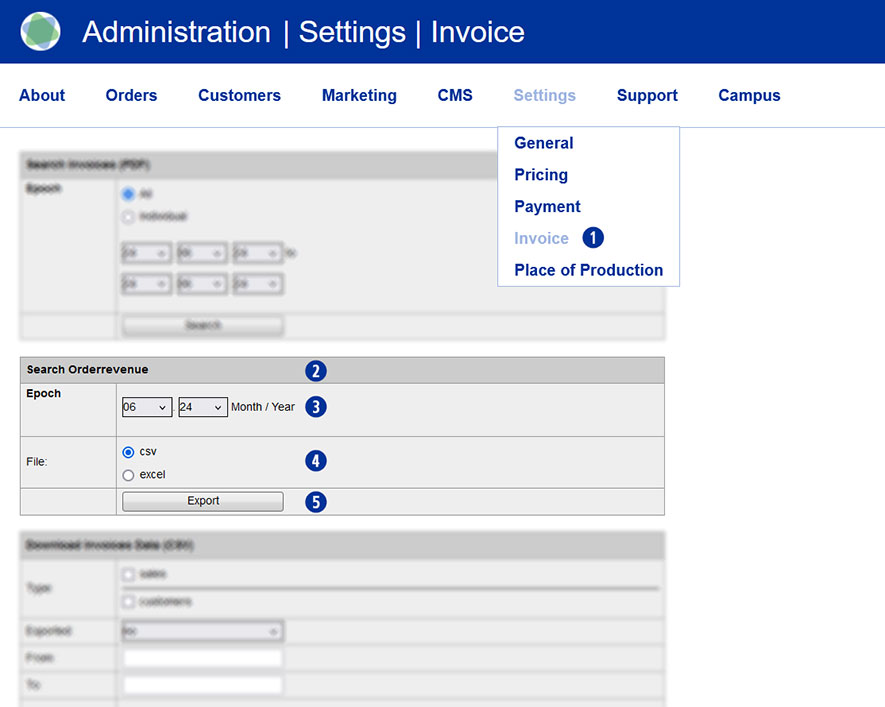
The export file is either opened directly or saved locally with the appropriate name.
Example
Show all sales of my customers in the month June 2024
- shopbrandname_revenues_2024_06.xls
- shopbrandname_revenues_2024_06.csv
The generated report contains the following columns/values including a heading.
- Unitedprint Invoice ID
- Unitedprint Invoice Date
- Unitedprint Orderrevenue
- Unitedprint Order ID
- Unitedprint Paymethode
- Shop Invoice ID
- Shop Order ID
- Shop Orderrevenue
- Shop Paymethode