Dealing with faulty data decides with the filecheck option selected when ordering. The following two options are available:
- Basic check (free)
- Premium-Check (including correction, paid)
If the premium data check was selected by your customer, mistakes can often be remedied by our team independently.
If new data are required, information is sent by e-mail to you as a partner as well as to the customer.
Example: e-mail content
–>
Dear Mrs./Mr.,
Thank you very much for your order! Our free Basic-Filecheck has led to the following result:
- Customer request not possible:
Your editing request cannot be processed.
Unfortunately, our team cannot correct the errors listed. Therefore we would like to ask you to send us corrected and complete printing data (all pages for order).
Please confirm in the detailed listing of your order (under MyOrders http://myshop.com?orderstep=1_cstmzng&id=2473) that you sent fully corrected printing data. Otherwise we cannot proceed with your order!
PLEASE CONSIDER: Without your response at MyOrders ‘Artworking’, we cannot proceed with your order.
<–
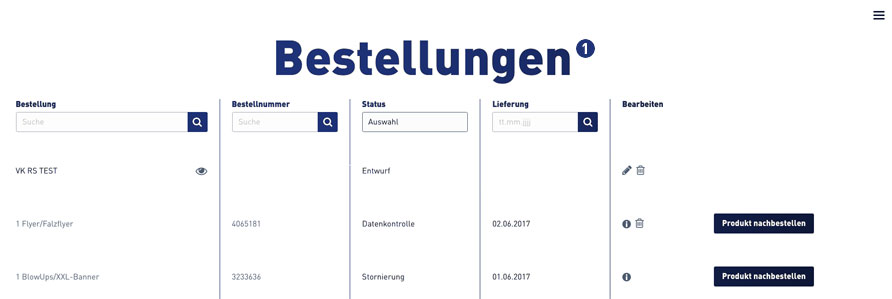
For a new data upload, it is necessary for your customer to use the link from e-mail above. The link leads directly to the order overview (orders). [1]
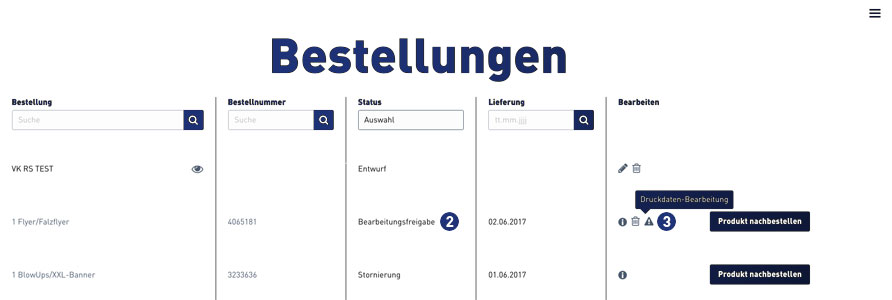
Select the relevant order within the order overview. Jobs that require new print data to be uploaded have the status “Processing approval”. [2]
A warning symbol [3] is displayed at the corresponding order item in the “Edit” column, which must be clicked by the customer.
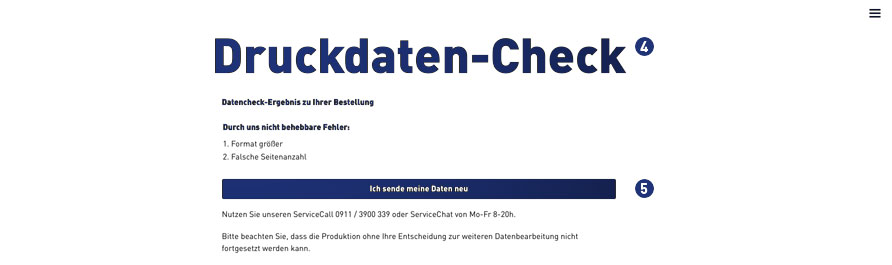
After clicking on the warning symbol, the following window opens for the print data check. [4] Confirm the link “I’m sending my data” to continue. [5]
For further processing, the indicated and following instructions must be observed. [6-9]
 Select print job, click on “Upload print data”
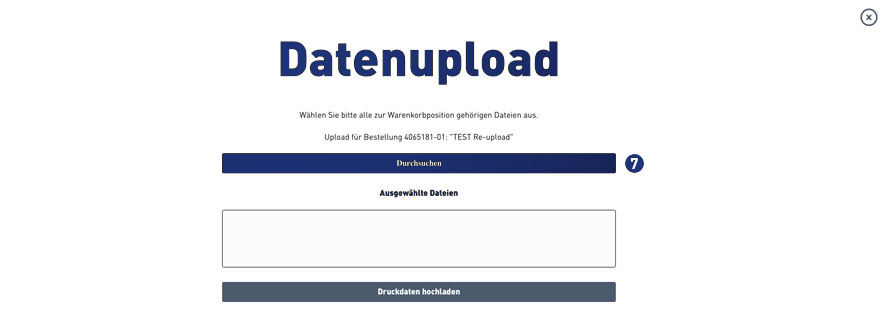 Select print data – click “Browse”
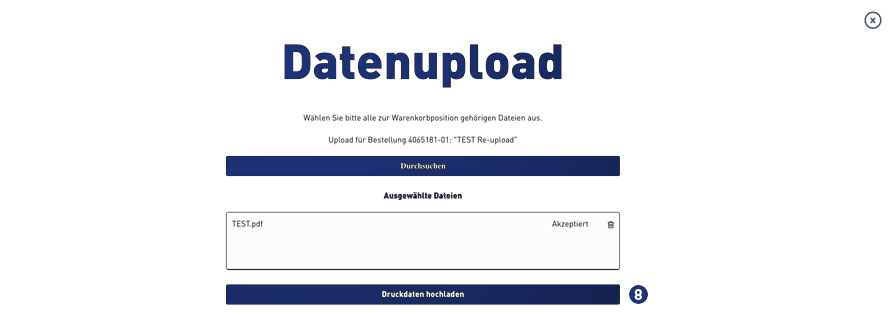 Analysis of the print data – accepted – click on “Upload print data”
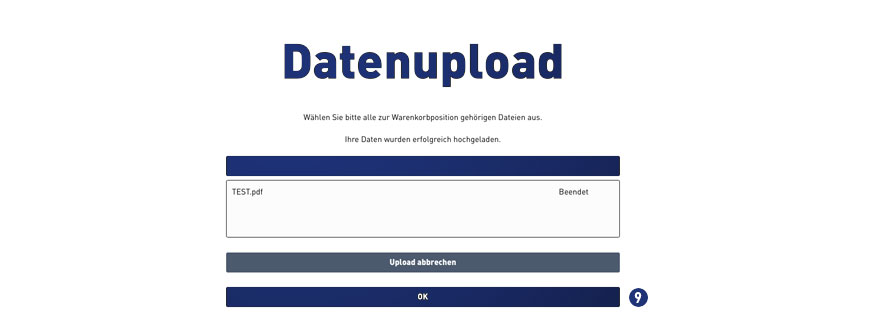 Status file upload – when “finished” continue with click on button “OK”
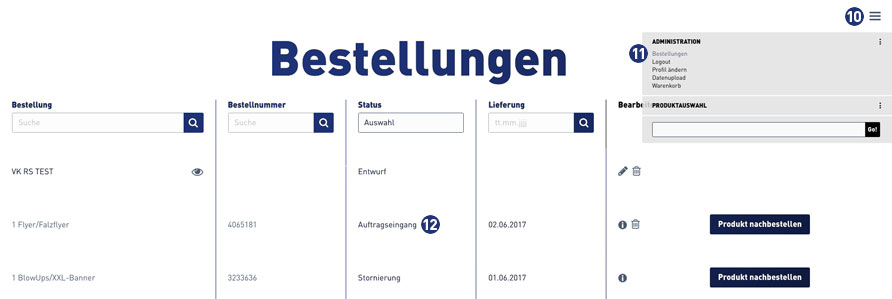
Then change to the order overview via the burger menu [10]. Click on the link “Orders”. [11]
When the file upload is completed successfully, the status in the order overview for this order automatically changes to “Order Inbox”. [12]