On the homepage of the Partnershop you can present your company attractively in the form of images and text.
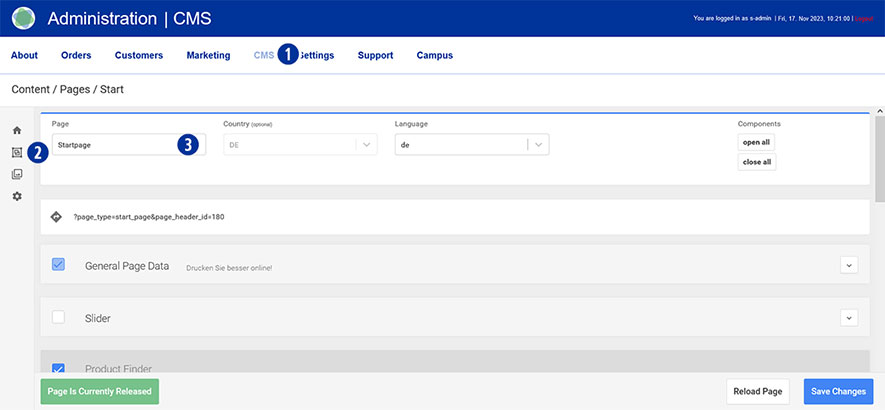
Switch to your Partnershop backend – CMS / Content / Pages / Start. [1][2].
You are here Page / Startpage. [3]
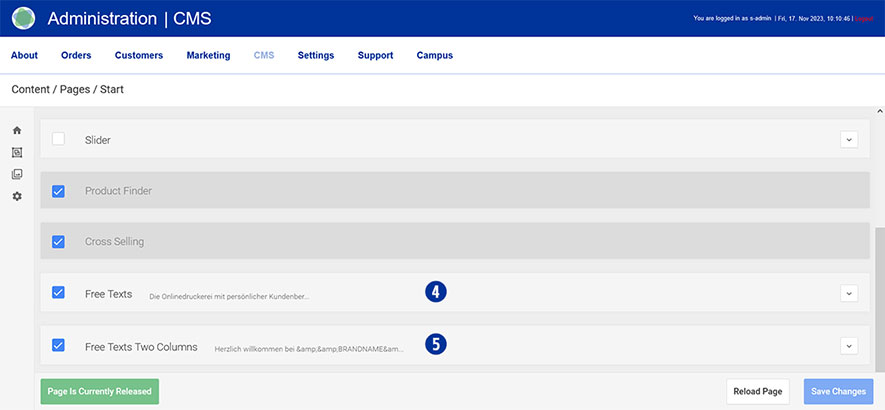
To display it, select a variant from one of the two tabs “Free Texts” [4] or “Free Texts Two Columns”. [5]
Setting options tab „Free Texts“
• Headline
• Content (1-spaltic)
Setting options tab „Free Texts Two Columns“
• Headline
• Content (2-spaltic)
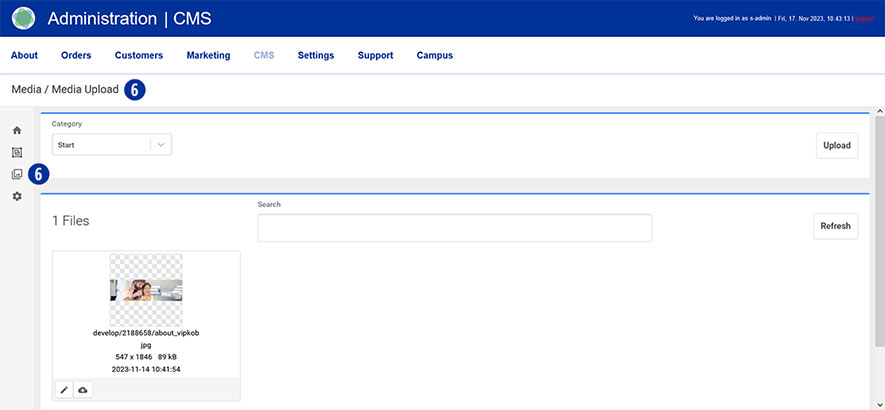
Media Upload
In order to use graphics in your content, images must first be uploaded in “Media Upload”.
Detailed information on the topic of “Media Upload” [6] can be found via this link.
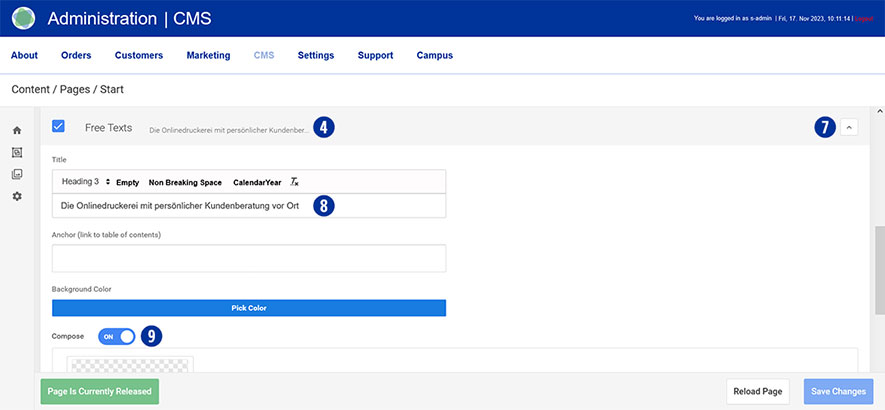
Scroll to the “Free Texts” [4] or “Free Texts Two Columns” [5] tab and open it. [7]
Enter the desired text in the “Title” input field. [8] Make sure to maintain the “Heading 3” formatting.
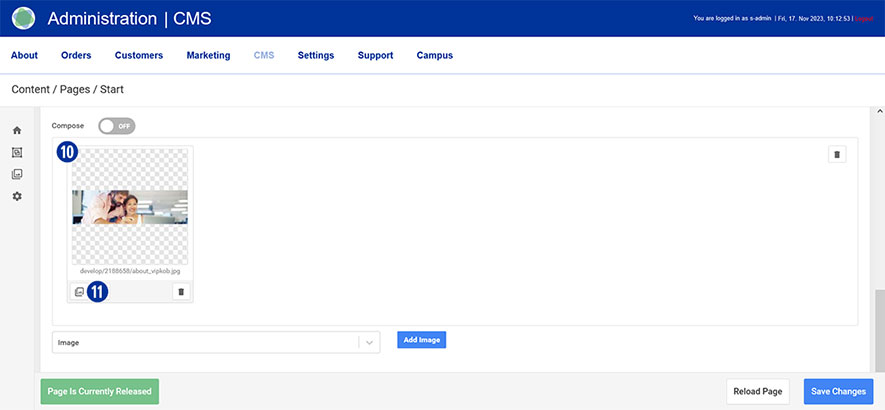
Under “Compose” drag the slider to “ON”. [9]
Select the homepage image [10] previously uploaded via “Media Upload” [6].
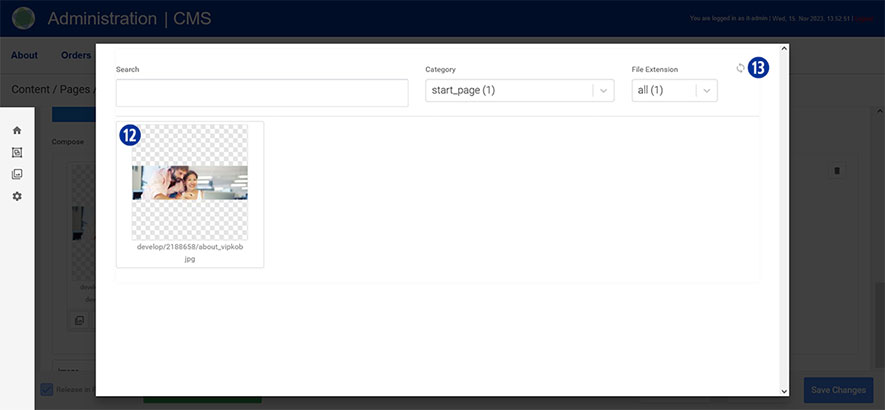
To select an image, click the “Images” icon. [11] You will be shown an overview of the uploaded files. [12]
Optionally, update the view using the “Update” icon at the top right. [13]
Do the same with the “Free Texts Two Columns” tab. [5]
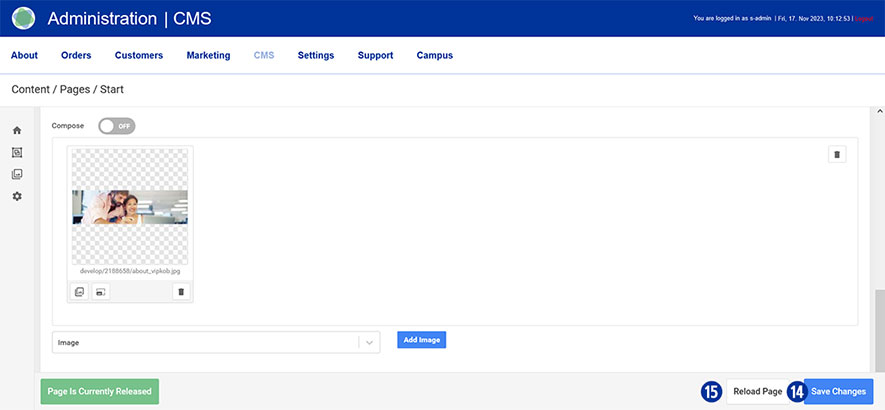
Save your changes by clicking on the “Save Changes” button. [14]
By clicking on the “Reload” button you will return to the original state of the page without saving any changes. [15]
Close the “Free Texts” [4] or “Free Texts Two Columns” tab. [5]
Note
Please pay attention to the following technical specifications when creating your home page text (image).
- Image size: 1530 x 450 Pixel with 72 dpi
- Save as a web-optimized JPEG file
File names must not contain umlauts or spaces.