In the Partnershop you have the option of customizing and editing your product information in the form of images and text.
The product catalog is displayed visually in the form of a product overview in your Partnershop.
Frontend
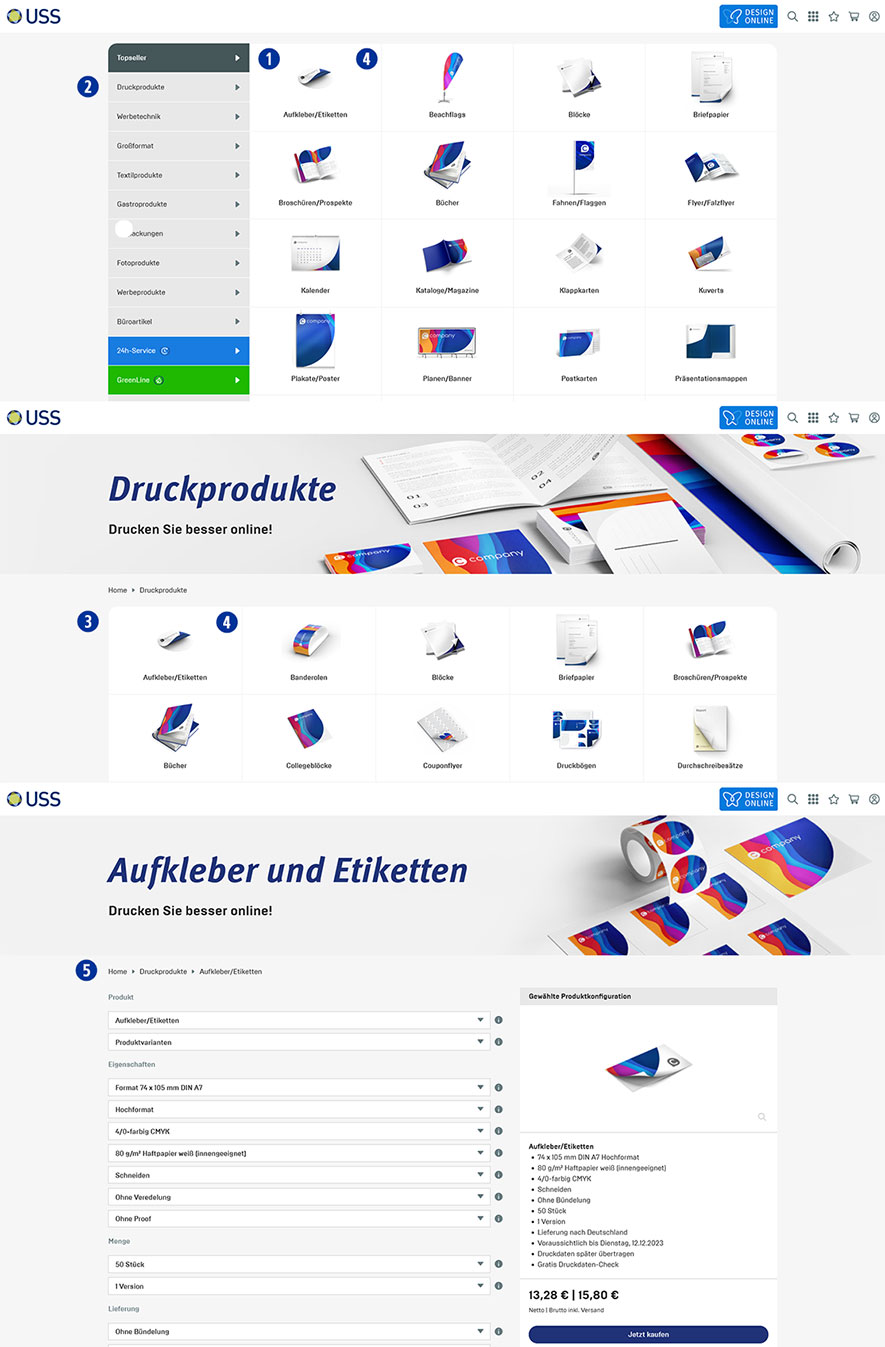
The product overview of the “Top Sellers” product category is automatically displayed on the homepage of your Partnershop. [1]
This feature allows you to discover the most popular products directly.
Change the product category using the navigation bar on the left. [2]
By clicking on a product category you will be taken to a page where all products in this category are listed. [3]
Clicking on a product image [4] takes you to the product detail view. [5]
There you will find further detailed product information and prices.
Backend
There are three areas available in your Partnershop backend for making changes to the product catalog.
- Category
- Product
- Product Variant
These three areas offer you the opportunity to flexibly adapt your product catalog and keep it up to date.
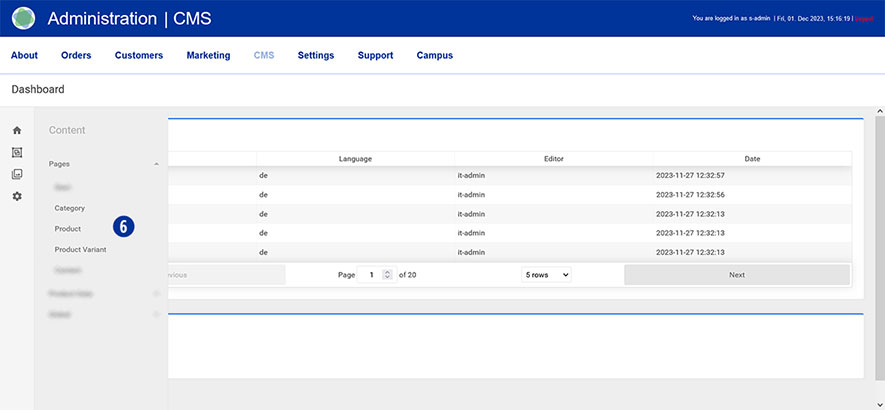
Switch to your Partnershop backend – CMS / Content / Pages and select an area. [6]
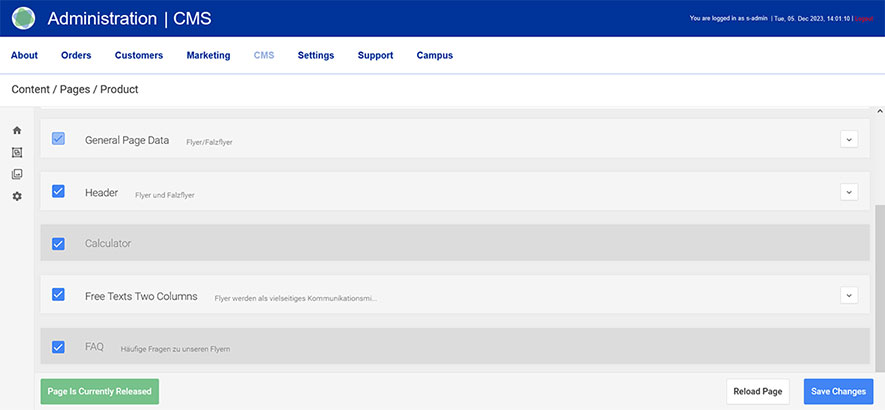
The following components are released for editing.
- General Page Data
- Header
- Free Texts Two Columns
Note
The content structure is identical for every area and every product, with a few exceptions.
Unreleased components contain system-dependent content that cannot be changed.
Your editing options in detail
Exemple
Product category: Printing Products
Product: Flyer/Leaflets
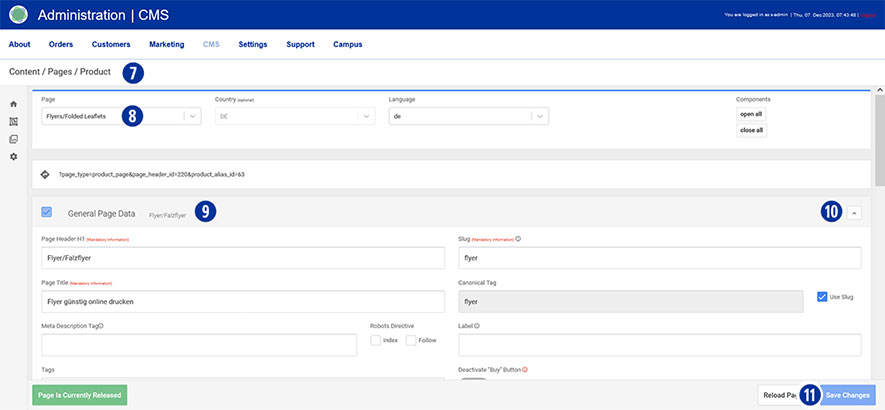
To do this, go to your partner shop backend – CMS / Content / Product [7] and select the product you want to edit under “Page”. [8th]
Go to the “General Page Data” component [9] and open it. [10]
Component “General Page Data”
- Page Header H1
Please note that a change has a direct impact on the display of the product name on the relevant pages. - Page Title
A change directly affects the browser title and the mouseover information text within the product overview.
The browser title should contain keywords relevant to the search.
Make sure that the length of your entry does not exceed 70 characters. - Meta Description Tag
Here you have the opportunity to store SEO-relevant content for search engines. - Robots Directive (Index, Follow)
Only activate the two checkboxes if you have created individual content (product information texts).
Non-individualized content does not lead to a positive search engine ranking. - Open Graph (Image, Title)
Using Open Graph information gives them more control over how content appears when sharing on social platforms. - Search
Under “Search Keywords”, define suitable search terms that will lead to your content as keywords in search queries.
The “preview image” is used to display the product within the product overview.
Save your changes by clicking on the “Save Changes” button. [11]
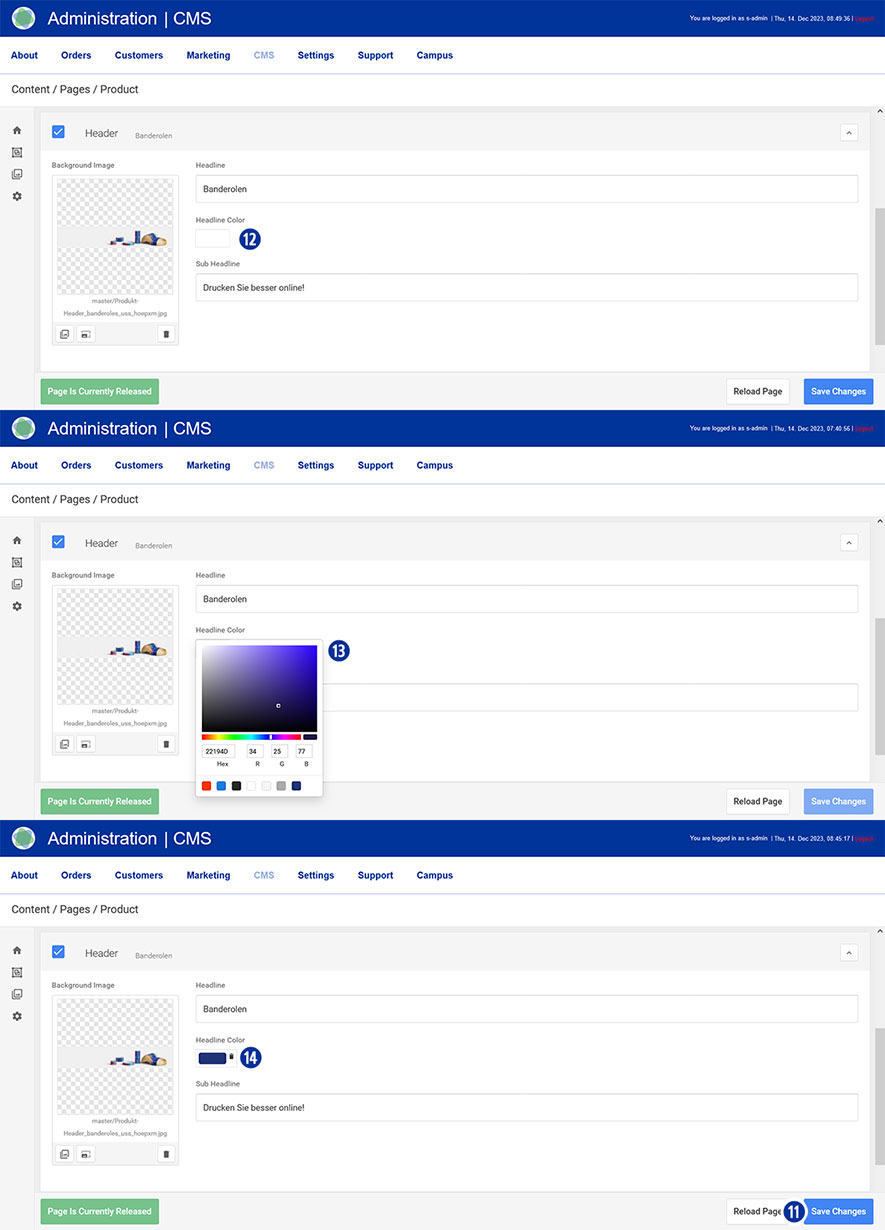
Component “Header”
In this area you can make the following changes.
- Headline
- Headline Color
Click in the input field [12]. Select the desired color from the color palette displayed. [13] Close the palette by clicking next to it. Cancel the color selection by clicking on the icon. [14] - Sub Headline
- Headline Image
Save your changes by clicking on the “Save Changes” button. [11]
The adjustments affect the display of the “product detail view” – not the product catalog.
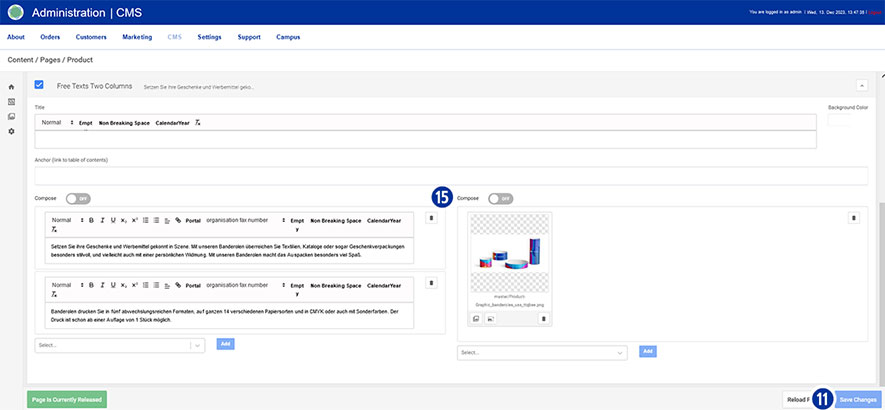
Component “Free Texts Two Columns”
In the 2-column component you have the opportunity to adapt SEO-relevant content for search engines (text and images). [15]
Changes in this area affect the display of the content on the “Product Detail View” page – below the calculation.
Save your changes by clicking on the “Save Changes” button. [11]
Components “Category” and “Product Variant”
The other two areas “Category” [4] and “Product Variant” [6] are processed in a similar way to the “Product” area.
Note
After you have saved your changes in the partner shop backend, it may take some time until the product name is updated accordingly.
In order to use graphics in your content, images must first be uploaded in “Media Upload”.
You can find detailed information on the topic of “Media Upload” via this link.