Credit card payments are made in the partner shop via the provider Worldline | Six Payment Services offered.
First you need to register with Six Payment Services.
If you have any questions, please contact the Setup Manager at the following e-mail address: setup@unitedprintshopservices.com
When the registration with Six Payment Services has been completed, you will receive your activation data and access data for My Saferpay and the Merchant Portal (My Portal) from Six Payment Services by e-mail.
To receive the data required to activate the credit card payment method in your Partnershop, please proceed as follows:
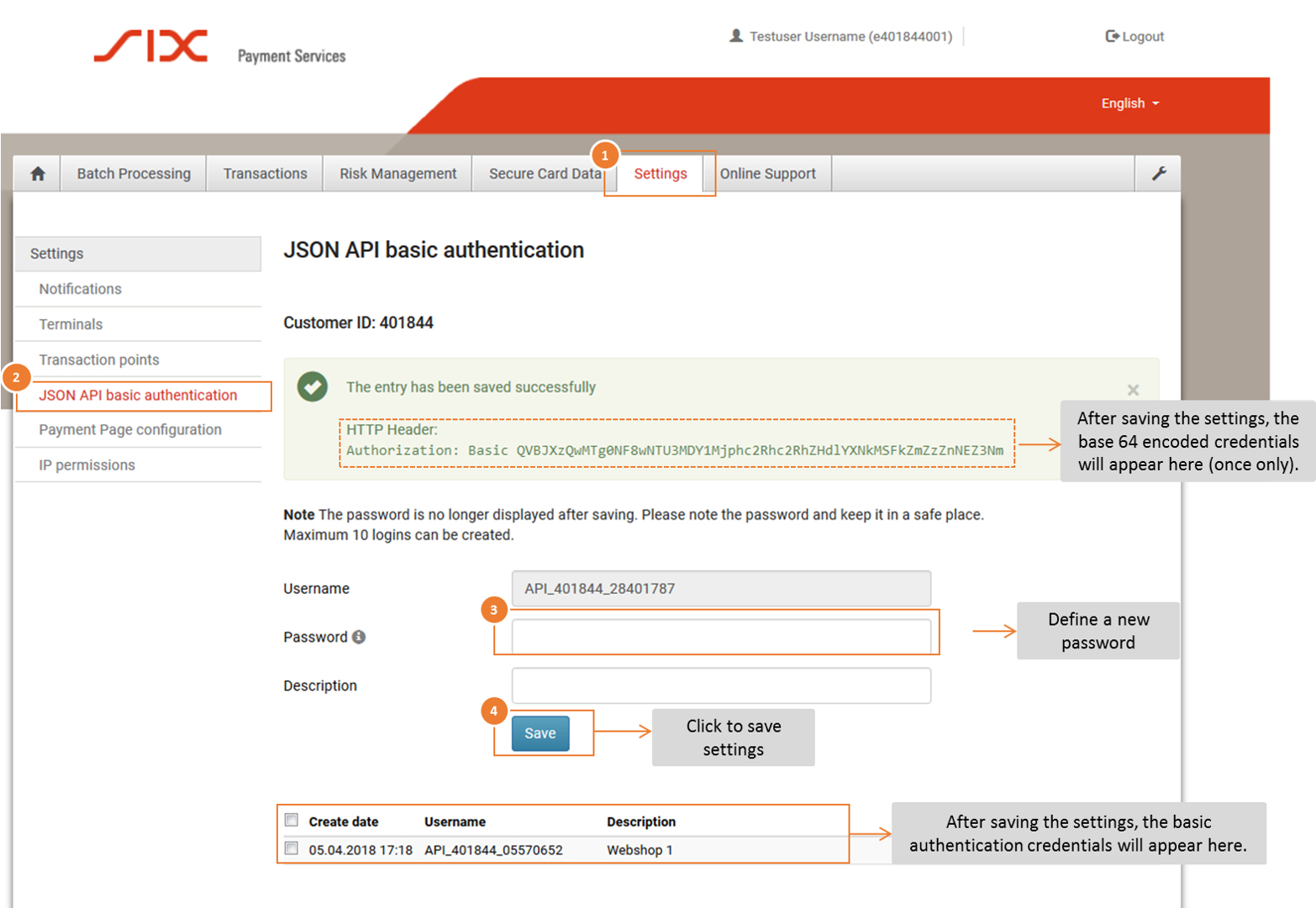
- Log in to the Saferpay Backoffice (My Saferpay) with your Saferpay user name and the corresponding password in order to create the JSON API access data.
- After successfully logging in, navigate to “Settings” (1) and then to “JSON API Basic Authentication” (2).
- Define your API password (3). Click the “Save” button (4) to save your entries.
Activation in the Partnershop backend
Open your Partnershop backend in the Finance > Payment area and enter the required data in the “Indicate your Worldline business account” module.
- API username: This is the username which is displayed in My Saferpay > Settings> JSON API Basic Authentication, e.g. API_401844_28401787
- API password: This is the password that you have defined in My Saferpay.
- Customer ID: The CustomerID is a 6-digit sequence of numbers and is displayed in My Saferpay > Settings > JSON API Basic Authentication. It is also part of the username API, e.g. 401844
- Terminal ID: You can find the Terminal ID (for e-commerce transactions) on the one hand in My Saferpay > Settings > Terminals and on the other hand in the activation data sent to you by SIX Payment Service by e-mail. The Terminal ID usually has the format 17xxxxxx.
Confirm the entries in the Partnershop backend with the button “Go” .
You can then activate the “Activate Payment by credit card” checkbox in the “Activate payment methods” module on the same page (Finance > Payment) and confirm here with “Go”.
The payment method is then available to customers in the shopping cart.