General (3)
Dealing with faulty data decides with the filecheck option selected when ordering. The following two options are available:
- Basic check (free)
- Premium-Check (including correction, paid)
If the premium data check was selected by your customer, mistakes can often be remedied by our team independently.
If new data are required, information is sent by e-mail to you as a partner as well as to the customer.
Example: e-mail content
–>
Dear Mrs./Mr.,
Thank you very much for your order! Our free Basic-Filecheck has led to the following result:
- Customer request not possible:
Your editing request cannot be processed.
Unfortunately, our team cannot correct the errors listed. Therefore we would like to ask you to send us corrected and complete printing data (all pages for order).
Please confirm in the detailed listing of your order (under MyOrders http://myshop.com?orderstep=1_cstmzng&id=2473) that you sent fully corrected printing data. Otherwise we cannot proceed with your order!
PLEASE CONSIDER: Without your response at MyOrders ‘Artworking’, we cannot proceed with your order.
<–
For a new data upload, it is necessary for your customer to use the link from e-mail above. The link leads directly to the order overview (orders). [1]
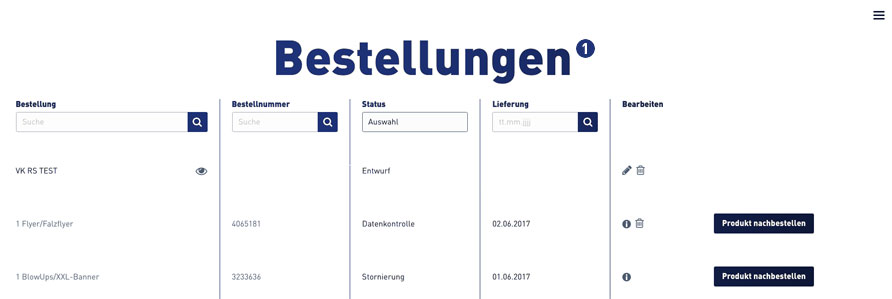
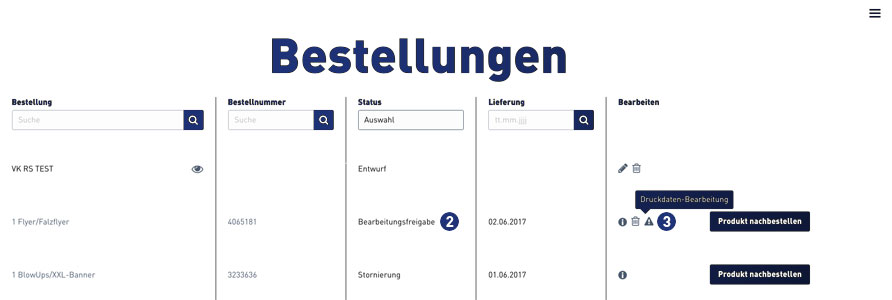
Select the relevant order within the order overview. Jobs that require new print data to be uploaded have the status “Processing approval”. [2]
A warning symbol [3] is displayed at the corresponding order item in the “Edit” column, which must be clicked by the customer.
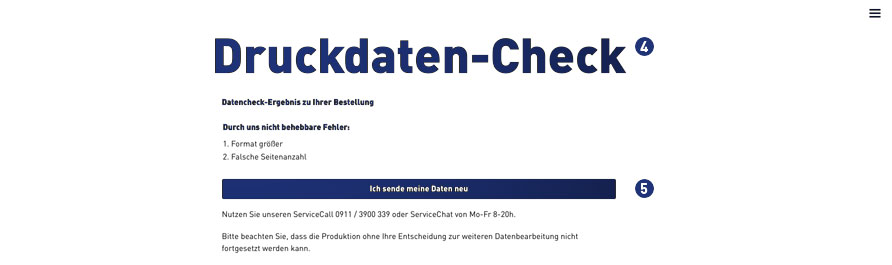
After clicking on the warning symbol, the following window opens for the print data check. [4] Confirm the link “I’m sending my data” to continue. [5]
For further processing, the indicated and following instructions must be observed. [6-9]
 Select print job, click on “Upload print data”
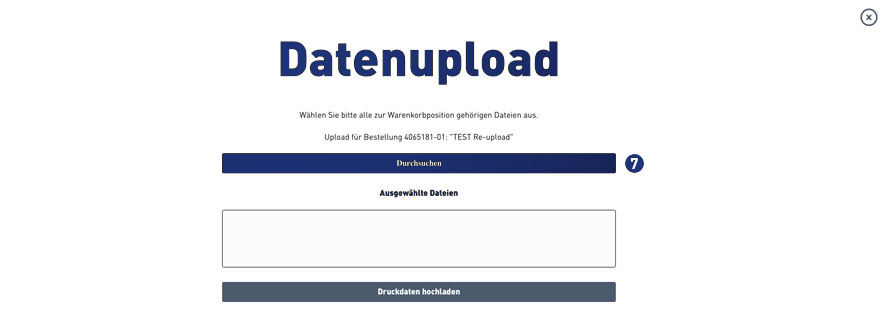 Select print data – click “Browse”
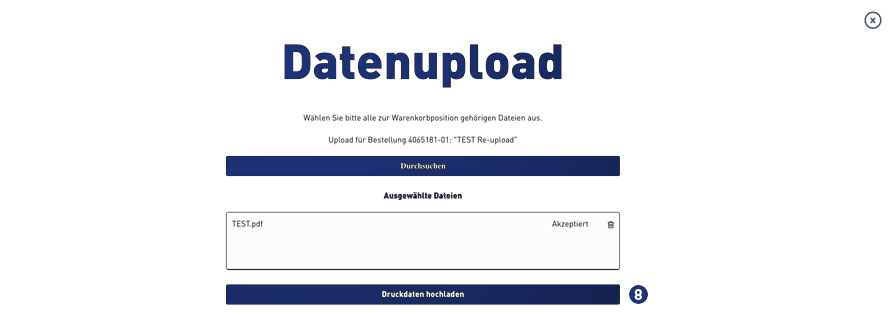 Analysis of the print data – accepted – click on “Upload print data”
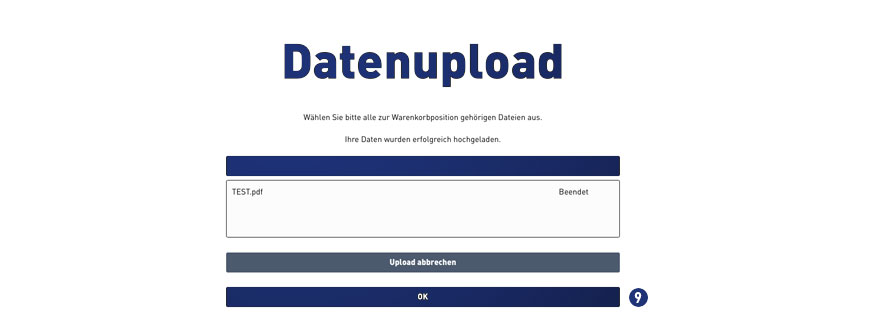 Status file upload – when “finished” continue with click on button “OK”
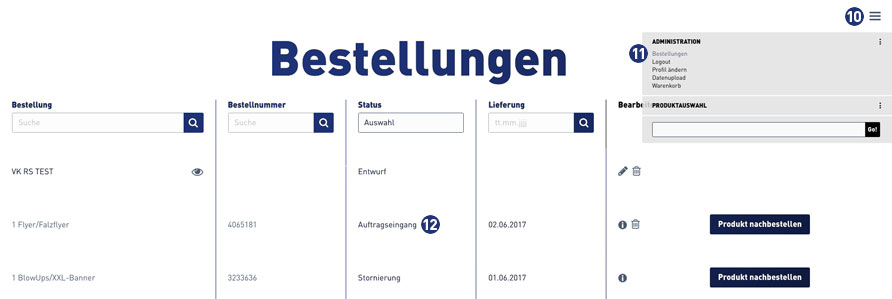
Then change to the order overview via the burger menu [10]. Click on the link “Orders”. [11]
When the file upload is completed successfully, the status in the order overview for this order automatically changes to “Order Inbox”. [12]
In case the place of production of your order item is Unitedprint: Yes.
Please note:
The automated forwarding of file check information mails to your customers is currently inactive (until June 2016). Please be prepared to forward such information manually to your customers.
There are two file check options for your customers to choose from: A free file check and a premium file check.
Free file check:
Free check of your data for a general printing usability. You will receive our file check feedback within 6 hours after the receipt of your data. Please note that your print data will not be checked for quality.
For example, your data will not be checked for:
– Resolution
– Trimming
– Objects in trim area
– Transparencies
– Bitmap-fonts
– Folding measures
– Color mode
However, if errors – restricting the printing – are found, we offer you three possibilities:
a) Re-delivery of corrected data
b) Approval for printing; this means you will have your artwork printed without further amendments (subject to type of error)
c) Change of order
Premium File check:
This service offers you a personal and comprehensive check of the quality of your print data as well as a file check with time-guarantee.
Your print data is checked based on the following criteria:
– Data matches your order (page format, number of pages, colour space, special colours)
– General useability (minimum size, file type, password, corrupt data, export errors, objects outside the printing area, RGB)
– Line thickness (min. 0.25 mm)
– Colour mode (CMYK, special colours excepted)
– Colour channel layout
– Page orientation/layout
– Overprinted elements
– (Embedded) text
– Printable comments
– Layers
– Data quality
– Bleed (2 mm)
– Setup (individual pages; magazine covers as double pages)
– Resolution (min. 300 dpi; A1 and A0: 150 dpi)
– Folding methods
– Displacement
– Transparency
– Objects in the bleed 1.5 mm from the cutting edge
– Printing area correct
– Stamping requirements
If errors – affecting the print result in a negative way – are found, we offer you four possibilities:
a) Re-delivery of corrected data
b) Processing of your data by our team (subject to type of error)
c) Approval for printing; this means you will have your artwork printed without further amendments (subject to type of error)
d) Change of order
Usually print data will created and sent in the PDF format (Portable Document Format). Please note the default settings for prepress.
You or your customers can also send us a TIFF or JPEG file. In a PDF file, the fonts needs to embedded.
Production (4)
Dealing with faulty data decides with the filecheck option selected when ordering. The following two options are available:
- Basic check (free)
- Premium-Check (including correction, paid)
If the premium data check was selected by your customer, mistakes can often be remedied by our team independently.
If new data are required, information is sent by e-mail to you as a partner as well as to the customer.
Example: e-mail content
–>
Dear Mrs./Mr.,
Thank you very much for your order! Our free Basic-Filecheck has led to the following result:
- Customer request not possible:
Your editing request cannot be processed.
Unfortunately, our team cannot correct the errors listed. Therefore we would like to ask you to send us corrected and complete printing data (all pages for order).
Please confirm in the detailed listing of your order (under MyOrders http://myshop.com?orderstep=1_cstmzng&id=2473) that you sent fully corrected printing data. Otherwise we cannot proceed with your order!
PLEASE CONSIDER: Without your response at MyOrders ‘Artworking’, we cannot proceed with your order.
<–
For a new data upload, it is necessary for your customer to use the link from e-mail above. The link leads directly to the order overview (orders). [1]
Select the relevant order within the order overview. Jobs that require new print data to be uploaded have the status “Processing approval”. [2]
A warning symbol [3] is displayed at the corresponding order item in the “Edit” column, which must be clicked by the customer.
After clicking on the warning symbol, the following window opens for the print data check. [4] Confirm the link “I’m sending my data” to continue. [5]
For further processing, the indicated and following instructions must be observed. [6-9]
Select print job, click on “Upload print data”
Select print data – click “Browse”
Analysis of the print data – accepted – click on “Upload print data”
Status file upload – when “finished” continue with click on button “OK”
Then change to the order overview via the burger menu [10]. Click on the link “Orders”. [11]
When the file upload is completed successfully, the status in the order overview for this order automatically changes to “Order Inbox”. [12]
In case the place of production of your order item is Unitedprint: Yes.
Please note:
The automated forwarding of file check information mails to your customers is currently inactive (until June 2016). Please be prepared to forward such information manually to your customers.
There are two file check options for your customers to choose from: A free file check and a premium file check.
Free file check:
Free check of your data for a general printing usability. You will receive our file check feedback within 6 hours after the receipt of your data. Please note that your print data will not be checked for quality.
For example, your data will not be checked for:
– Resolution
– Trimming
– Objects in trim area
– Transparencies
– Bitmap-fonts
– Folding measures
– Color mode
However, if errors – restricting the printing – are found, we offer you three possibilities:
a) Re-delivery of corrected data
b) Approval for printing; this means you will have your artwork printed without further amendments (subject to type of error)
c) Change of order
Premium File check:
This service offers you a personal and comprehensive check of the quality of your print data as well as a file check with time-guarantee.
Your print data is checked based on the following criteria:
– Data matches your order (page format, number of pages, colour space, special colours)
– General useability (minimum size, file type, password, corrupt data, export errors, objects outside the printing area, RGB)
– Line thickness (min. 0.25 mm)
– Colour mode (CMYK, special colours excepted)
– Colour channel layout
– Page orientation/layout
– Overprinted elements
– (Embedded) text
– Printable comments
– Layers
– Data quality
– Bleed (2 mm)
– Setup (individual pages; magazine covers as double pages)
– Resolution (min. 300 dpi; A1 and A0: 150 dpi)
– Folding methods
– Displacement
– Transparency
– Objects in the bleed 1.5 mm from the cutting edge
– Printing area correct
– Stamping requirements
If errors – affecting the print result in a negative way – are found, we offer you four possibilities:
a) Re-delivery of corrected data
b) Processing of your data by our team (subject to type of error)
c) Approval for printing; this means you will have your artwork printed without further amendments (subject to type of error)
d) Change of order
Usually print data will created and sent in the PDF format (Portable Document Format). Please note the default settings for prepress.
You or your customers can also send us a TIFF or JPEG file. In a PDF file, the fonts needs to embedded.
If desired, the print data can now be selected and uploaded on the calculation page. In addition, there is the option of viewing the uploaded print data via a preview function after the upload process.
On the calculation page, there is a selection list with the name “Print data”. Here, you can choose between the following options.
- Transfer print data later
The upload takes place as usual after order completion including print data preview. - Upload print data now
The upload takes place directly on the calculation page including print data preview.
After selecting one of the options above, a layer for the login or guest login is displayed.
Log in there with your user data. Then select the desired print file. Click on the button “Choose print data”. The selected file will be displayed in the window above. Confirm your selection with the button “Upload print files”. The upload process is displayed via a status bar.
Afterward, you have the opportunity to preview and check the previously uploaded print data. Click on the button “Show uploaded print data”.
If the data are correct, confirm your selection via the button “Use uploaded print data”. Otherwise, you can delete the print data. Click on the button “Delete uploaded print data”. You will be redirected to the selection window for the print data upload.
Afterward, you get back to the calculation page. In the selection list “Print data” the selected upload option as well as a preview link (View) are displayed.
Note
Due to security issues, uploading archive files (e.g., zip, rar, tar, gz, etc.) is no longer possible.