Finance (4)
As a Partnershop operator, you have the option of ordering your own marketing materials and samples via your shop. Such an order can be treated as an “Internal Order”.
No automatic invoice is created in the Partnershop for this type of order.
Your invoice from the producer print24 remains unaffected.
The “Internal Order” option is intended exclusively for your own use as a Partnershop operator!
The “Internal Order” checkbox in the customer account should therefore only be activated in your own account.
Automatic process
To execute an “Internal Order”, switch to your Partnershop backend – Customers. [1]
Search for your customer account (customer number, email address, etc.). [2] Under “Customer data”, click the “Edit” button. [3]

Activate the “Internal Order” checkbox under “Payment methods”. [4] Confirm your entry by clicking on the “Save” button. [5]

Then switch to your shop and place an order.
As a logged-in user and with the “Internal Order” checkbox activated in your customer account, the “Order type” [6] selection is automatically displayed in the shopping basket.
If you activate the checkbox labelled “Internal” [7], the order is immediately zeroed.
Finalise your order.

Note
The “Internal Order” setting has no influence on the prices displayed in the calculation.
Yes, the ‘Invoice’ payment method can be activated for individual customers.
Go to the Partnershop backend – Settings / Payment. [1]
Navigate to the ‘Activate payment methods’ module. [2]
Activate the “Payment by Invoice” checkbox. [3]
Save the change using the ‘Go!’ button. [4]
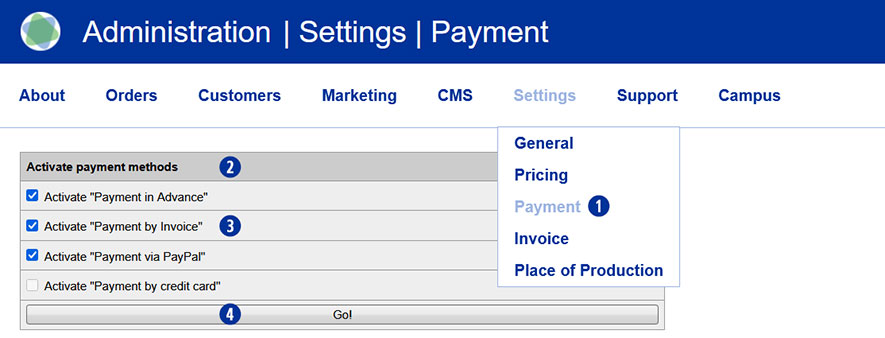
Then switch to the Partnershop backend – Customers. [5]
Navigate to the ‘Search for’ module [6] and search for the customer for whom you would like to authorise invoice payment. Use one or more of the search criteria, such as customer number, e-mail address, name, etc., to do this. [7]
Confirm the search by clicking on the ‘Go!’ button [8]
If you know the customer number, you can select it directly from the overview on the right under ‘CN’ by clicking on the number. [9]
This will open the corresponding customer data record.

For further editing, click on the ‘Edit’ link in the ‘Customer data’ module. [10] [11]
In the ‘Edit customer data’ module [12], all possible payment methods are displayed – regardless of the options activated under. [2] [13]
To activate the ‘Invoice’ payment method for the previously selected customer, tick the “Invoice” [14] checkbox in the ‘Payment methods’ area as a permitted payment method.
Save the change using the ‘Save’ button. [15]

Note
The ‘Invoice’ checkbox in the ‘Edit customer data / Payment methods’ module is deactivated by default and must be activated for each customer if required.
Yes, you can define your own number ranges.
To do this, proceed as follows.
Go to the Partnershop backend – Settings / Invoice.
Navigate to the ‘Invoice Number range’ module.
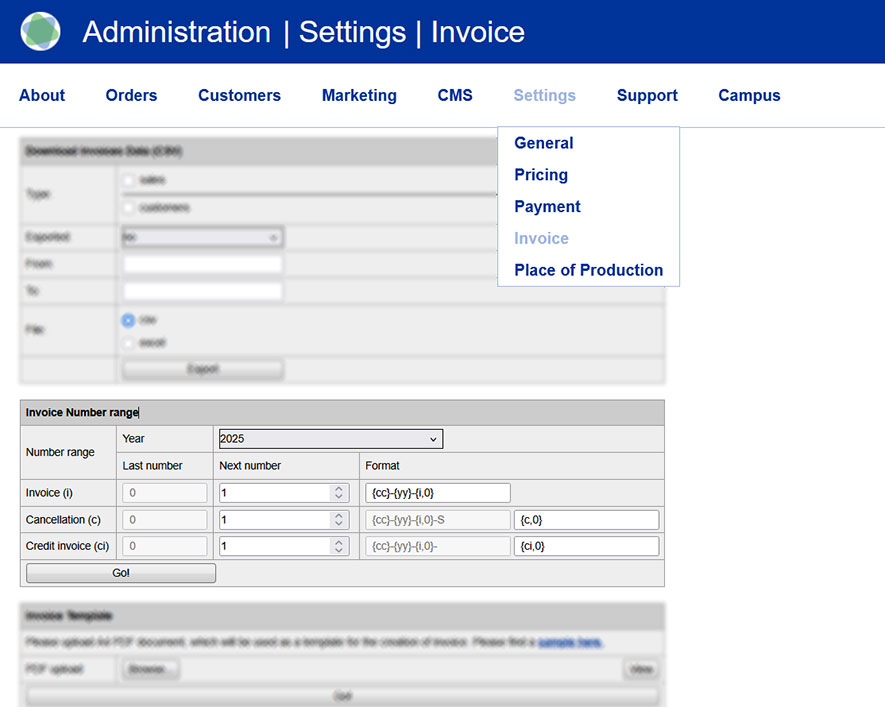
Via the modul ‘Invoice Number range’ [1] you can make inputs and enter your own number codes [2] for invoices [3], cancellations [4] and invoice credits [5].
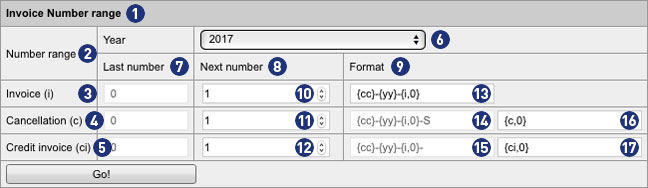
The displayed view always refers to the year selected by the combobox “Year” [6]. Alternatively, you can use this selection box to display settings for the previous year or the following year, make changes, and edit your own number ranges.
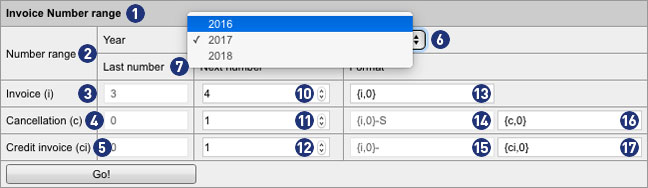
The fields in the column “Last number” [7] indicate how many invoices, cancellations and credits invoices were generated in the currently selected year [6]. The values are gray and can not be changed.
The fields in the columns “Next number” [8] and “Format” [9] can be customized in the “Invoice” line. The values are black and can be changed.
In the input field [10] you define a value (for example, 4). This determines that the next invoice generated by the backend will be given this number. Similarly, the numbering continues for each successive calculation (e.g., 5, 6, etc.).
Note
The entered value in field [10] is only valid if it is greater than the displayed value in the field “Last number” (In the example: 4 > 3).
In the input field [13], you define how the invoice number is to be displayed. You can define a prefix to prepend the invoice number. It is possible to specify a minimum length of the invoice number (without prefix).
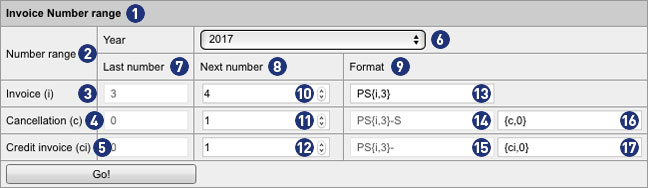
In our example, the following individual adjustments have been made.
In the field [13], the prefix “PS” has been added and the value 0 in the brace has been changed to 3.
In the example PS{i;3} the next invoice generated by the backend would be: PS004.
PS = Prefix
004 = Invoice number with a minimum length of 3 digits and leading zeros
4 becomes 004, 44 becomes 044 and 444 becomes 444. Since it is a minimum length, longer numbers remain unchanged: 4444 remains 4444.
A detailed explanation of the possible formats can be found later in the text.
Note
The adjustments made in field [13] are also transferred to the fields [14] and [15] via the button “Go!”.
The same algorithm applies to cancellations and credit invoices. By default, their numbering starts with the value 1. Unless otherwise specified, a different value is defined in field [10].
For cancellations, the invoice number is generated with the suffix “-S” plus the consecutive number.
In the example PS{i;3}-S {c;0} the next reversed cancellation created by the backend would be represented as follows: PS003-S1.
PS = Prefix
003 = Previous invoice number with a minimum length of 3 digits and 2 leading zeros
-S = Suffix for Cancellation
1 = Consecutive number without leading zeros
For credit invoices, the invoice number is generated with the suffix “-” plus the consecutive number.
In the example PS{i;3}- {ci;0} the next credit note created by the backend would be represented as follows. PS003-1.
PS = Prefix
003 = Previous invoice number with a minimum length of 3 digits and 2 leading zeros
– = Suffix for credit invoice
1 = Consecutive number without leading zeros
Note
The entries must not contain any umlauts or empty spaces.
The possible variables within the curly brace in field [13] are replaced by real values when the invoice is generated.
The gray text fields in format format [14] and [15] are inactive and can not be changed. For both fields, the format specified in field [13] applies.
If there are no entries for the current year, a number range with the format of the last year and the value for “Next number” for all invoice types is automatically set to 1. If no entry is found for the previous year, a default number range is generated.
Important
The prerequisite for an error-free billing – even beyond the turn of the year – is that in the field [13] an invoice number format with year {yy} or
{yyyy} is used.
Failure to do so creates duplicate records. The result is faulty invoices, which can not be processed and sent.
Notes for the formatting in the input fields
{yyyy} Year with 4 digits | Ex.: 2017
{yy} Year with 2 digits | Ex.: 17
{mm} Month with 2 digits | Ex.: 06
{dd} Day with 2 digits | Ex.: 28
{qq} Quarter with 2 digits | Ex.: 02
{i,n} Digit {i} with leading zeros {n} | as a 3-digit number with 2 leading zeros {i,3} | Ex.: 003
{c,n} Digit {c} with leading zeros {n} | as a 3-digit number with 2 leading zeros | Ex.: 003-S1
{ci,n} Digit {ci} with leading zeros {n} | as a 3-digit number with 2 leading zeros | Ex.: 003-1
An invoice that was already created and sent to your customer can be changed later.
To do this, go to your Partnershop Backend > Production > Track and search for the order related to the invoice. Change to the detailed view and to the module “Payment”.
In the next step, the ordered and sent invoice has to be canceled. To do this, proceed as follows.
how-do-i-create-a-cancellation-invoice/
After successful cancellation, you can create a new invoice manually and send it to your customer manually. To do this, proceed as follows.
how-can-i-create-a-customer-invoice/
Using the edit function (pen) you have the possibility, to change the invoice address, the delivery or invoice date, and so on.n.
Marketing (2)
Yes. The search mask on the left contains a new filter “Invoice Payment”. [1]
If you activate the checkbox and then click the button “GO!” [2] all customers of your Partnershop with the payment method “Invoice” will be displayed. [3]
The filter remains active until it is deactivated by youself or left the page.
In your Partnershop Backend Marketing > Customers you will find all relevant information about your customers in the result overview on the right. [1]
- Customer number (CN)
- Company
- Name
- Register
- Profil changed
- Orders
- Order Revenue (Umsatzübersicht)
- Invoice
Display Order Revenue
By default, always 25 entries are displayed. The selection box [2] below the display can be used to change the number of results to 10, 25, 50 or 100 per page.
In the column “Order Revenue” [4] the total net sales of the respective customer is displayed..
Sorting
The columns “Customer number”, “Company”, “Name”, “Orders” and “Order Revenue”) can be sorted in ascending or descending order by clicking on the column name. [5] The results overview opens with ascending sorting of the column “Customer number”.
Display invoice payment and open invoices
In the result overview, another column “Invoice” is displayed to the right of the “Order Revenue” column. [6] It is shown graphically with an icon (green dot) [7], if the customer has the option “Invoice”.
In addition – in the case of open invoices – an info text (red) is displayed. [8]
Example
(2 unpaid) for two invoices not marked as “paid”
If no invoices are open, no info text is displayed.
Note
The sorting of the results always refers to all registered customers.